Native Reader Settings
The native EPUB reader lets you choose a starting reading profile, then adjust the document to suit your screen and reading preferences. These settings apply to EPUB text; PDFs and comics use their own format-specific controls.
Choose a reading profile
Open an EPUB, reveal the reader toolbar, and open Reader Settings. Select a profile to apply a coordinated set of settings:
| Profile | Starting point |
|---|---|
| Paper | The reader's default page layout and typography. |
| Comfortable | Larger text, more generous spacing, and leading-aligned paragraphs. |
| Focus | Scrolling text with progressive paragraph focus. |
| Accessibility | The accessible font, larger text, expanded spacing, and text normalization. |
| Night | A dark document theme with adjusted type weight and spacing. |
| Publisher Original | The publisher's font and styling where provided. |
Changing individual settings lets you fine-tune the result. Restore Reader Defaults resets the reader preferences. Profiles are useful starting points; choose and adjust the one that is most comfortable for you.
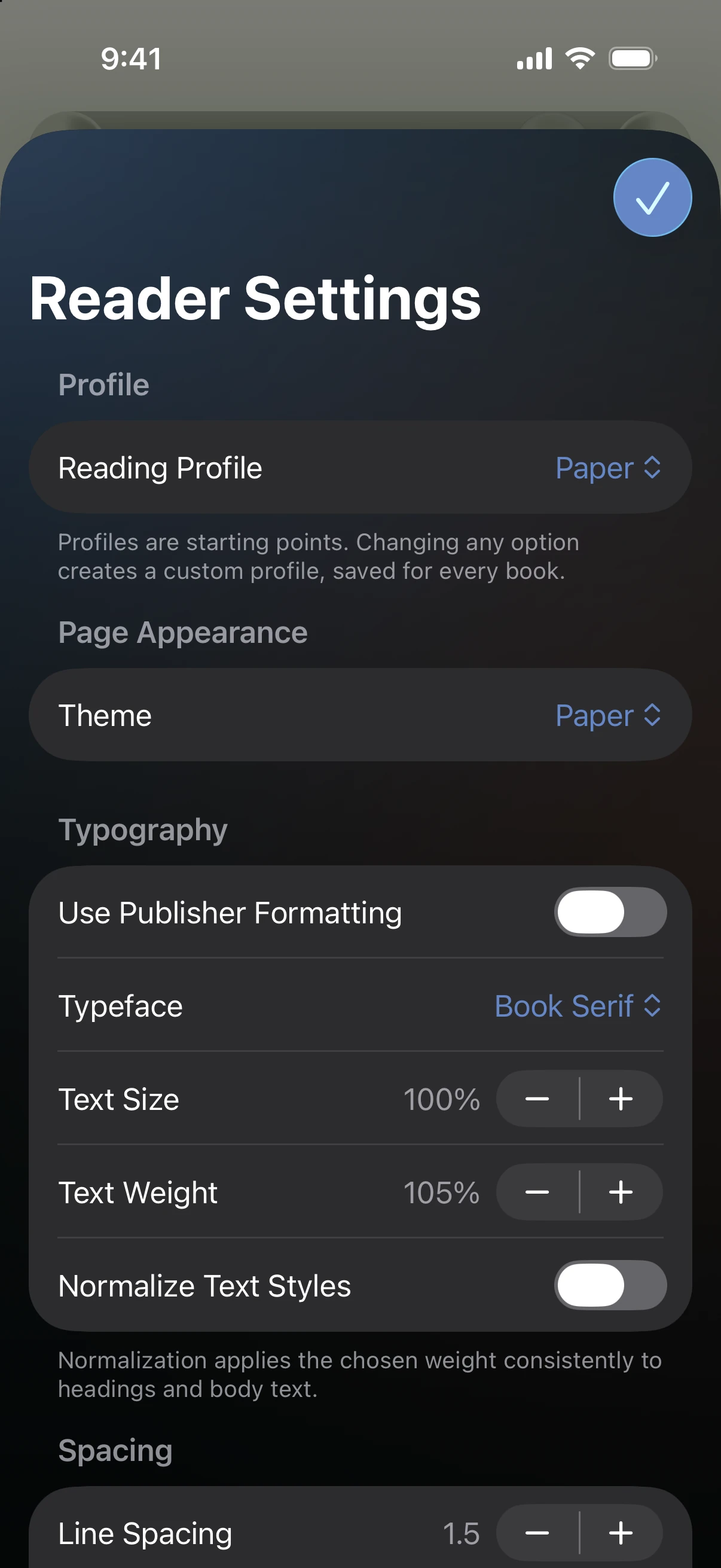
Adjust the page
Appearance changes the document theme. Typography and Spacing control the font, size, weight, line height, and spacing between letters, words, and paragraphs. The surrounding app controls keep Prismedia's dark appearance even when you choose a light document theme.
Under Layout, choose:
- Paged to turn pages, with Automatic, One, or Two columns where supported.
- Scroll for a continuous document.
- Margins, Alignment, and Hyphenation to adjust how the text fits.
Publisher styling can disable some manual overrides. If a control is unavailable, switch away from the Publisher Original profile or turn off publisher styling before adjusting it.
Use focus while scrolling
Set Flow to Scroll, then open Reading Focus:
- Progressive Paragraph Focus keeps text near the center fully visible and gradually fades surrounding passages. Fade Strength controls how pronounced that effect is.
- Reading Guide places a guide beneath the center line after scrolling settles.
These controls are available in Scroll mode. Switch back to Paged when you prefer ordinary page turns.
Keep your place
Changing the appearance is different from starting the book over. Use the reader's resume and navigation controls to return to your place, and the contents or bookmarks to move to a specific part of the book.
If the book includes an audiobook, Read and Listen to the Same Book explains combined continuation and chapter alignment. For PDF and comic behavior, see Playback and Reading.