Playback And Reading
Prismedia plays, reads, and previews media through the same entity-detail model. Controls change by media type, but ratings, metadata, artwork, links, and relationships stay consistent.
For step-by-step tasks, see read and listen to a book, native reader settings, and music playback.
Video playback
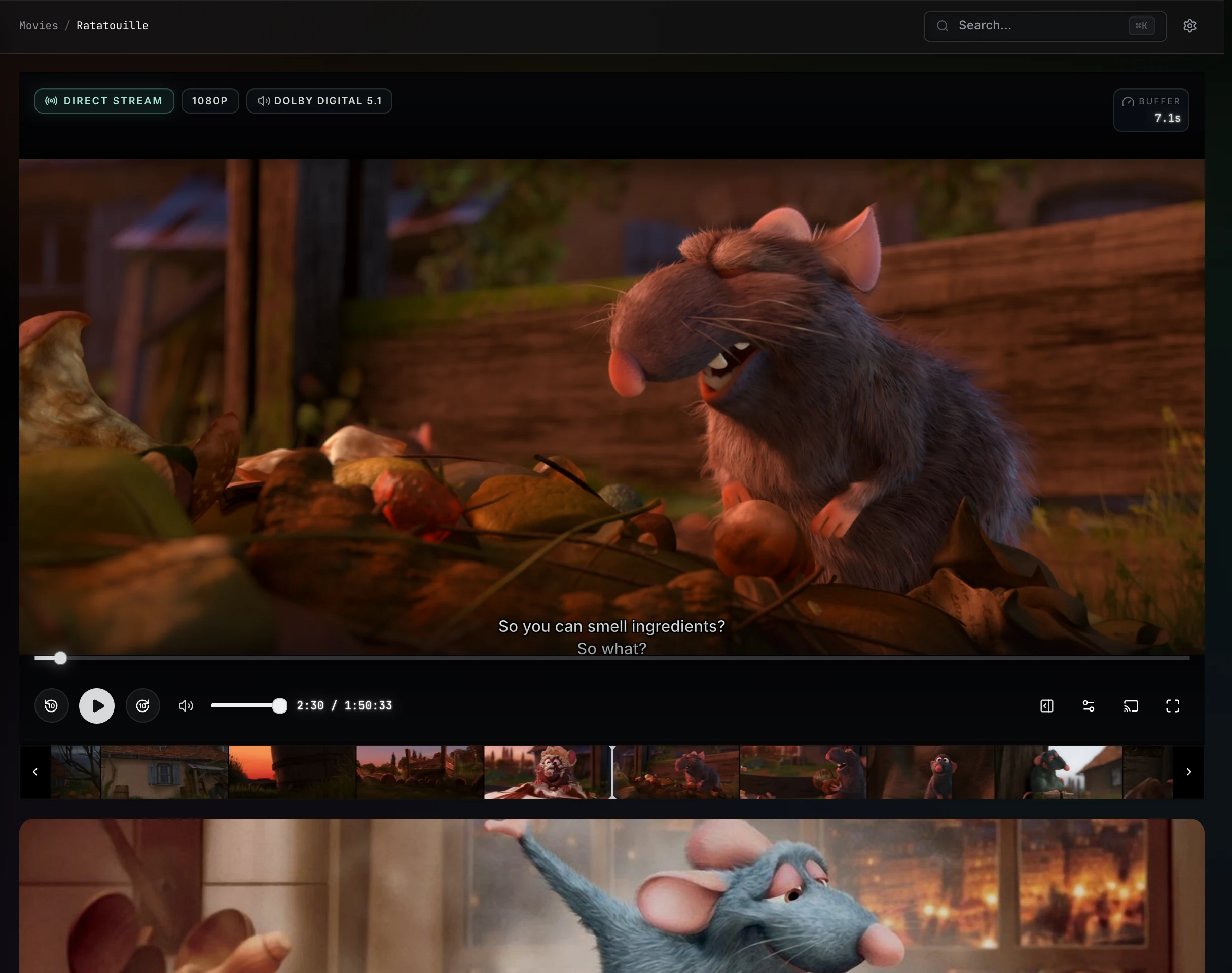
Videos direct-play when the browser (or client) can decode the source. When it can't, Prismedia stream-copies (remuxes) the original video into a browser-compatible container where possible — so HEVC and Dolby Vision Profile 8 play with near-zero server load — and only falls back to a full transcode (on-demand HLS via ffmpeg) when the browser genuinely can't decode the stream.
The player retries a stalled start before giving up, and auto-recovers by re-negotiating a compatible transcode in place (keeping your spot) if a file turns out to be undecodable.
Video detail pages include:
- Direct, stream-copy, and HLS playback, with a quality menu (including a Direct option).
- Trickplay thumbnails for timeline scrubbing.
- Custom preview frames and artwork.
- Subtitle track management.
- Dockable transcripts.
- Metadata, ratings, related entities, files, and provider IDs.
Subtitles
Subtitle tracks can come from the video's embedded streams, same-name SRT/VTT/ASS/SSA files beside the video, or tracks acquired from OpenSubtitles in the app. Supported text tracks are copied into Prismedia's generated storage and converted to WebVTT for browser playback; embedded and adjacent ASS/SSA tracks retain an app-owned styled source so the ASS renderer can display them. A library scan reconciles sidecar additions, edits, renames, and removals.
Open the transcript's track manager and choose Find subtitles to search by the video's OpenSubtitles hash, known provider IDs, filename, and episode metadata. Results show identity confidence separately from subtitle quality and explain whether a candidate matched by exact hash, episode identity, year, or release name. Downloading imports a Prismedia-owned track and refreshes the transcript immediately. OpenSubtitles currently delivers SRT to third-party clients; ASS/SSA styling remains first-class for embedded, adjacent, uploaded, and future provider sources that actually supply those formats.
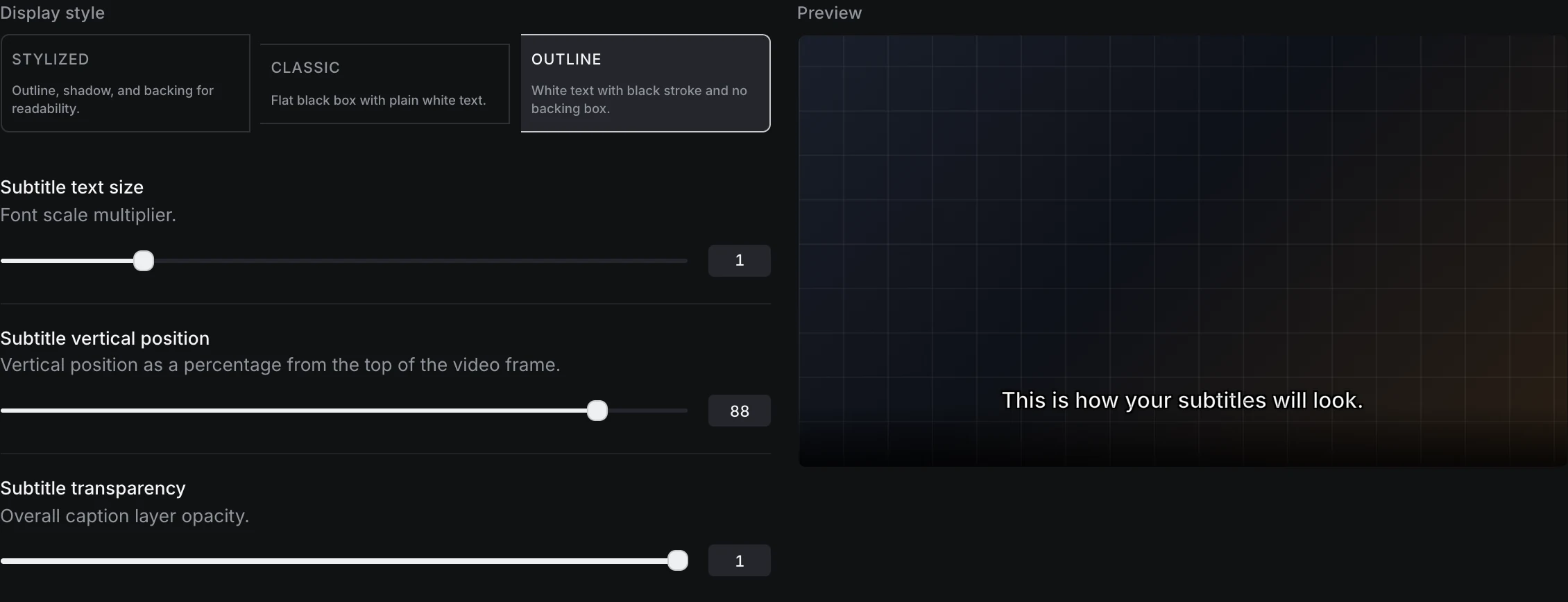
Subtitle view options control auto-enable behavior, weighted language and label preferences, caption style, text size, vertical position, and transparency. Positive weights promote matching tracks and negative weights demote them; video pages also offer per-browser appearance overrides from the player.
Transcripts
The transcript tab is also the subtitle workspace: upload a track, extract one from the media file, or search configured providers. When a track is selected it shows timed cues; clicking a cue seeks the player. On desktop the transcript can dock beside the video so playback and reading stay visible together.
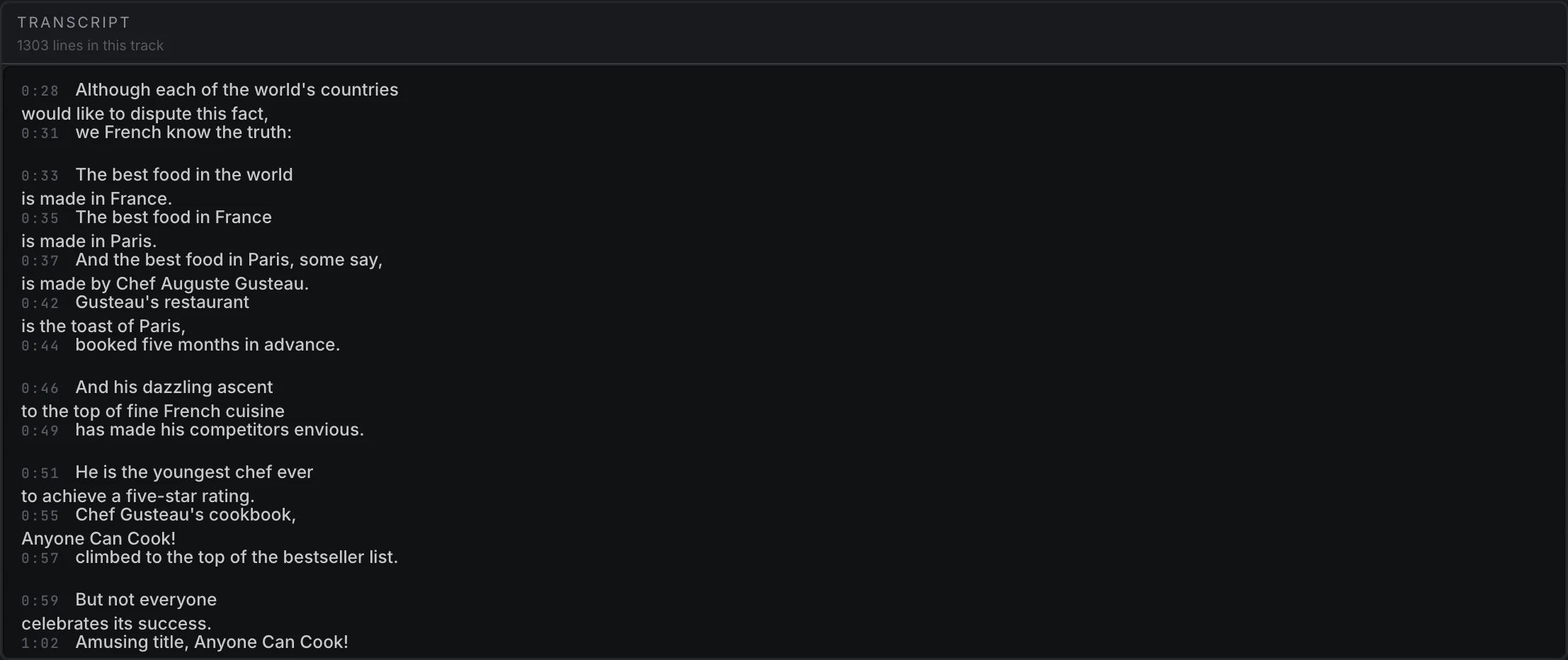
Image lightbox
Images and gallery items open in the universal lightbox: next/previous navigation, zoom and pan, inline animated-media playback, metadata, and linked entities. On phones, swipe left/right to move between items and swipe down to dismiss — including directly on a video.
Book and comic reader
Books open in a focused, full-page reader route. The reader adapts to the format:
| Format | Modes & controls |
|---|---|
Comic (.cbz/.zip) | Paged (tap zones, swipe, arrows) and vertical webtoon scroll; single or two-page spreads with cover handling; chapter/volume navigation. |
| EPUB | Reflowable (foliate-js): paged or scrolled, adjustable text size, comic-style tap zones; resumes by position (CFI). |
| Continuous scroll with selectable text, zoom (fit-width / fit-page / +/- / pinch), gapless toggle, in-document search, working links, download, and an outline popup; plus a paged mode. Resumes by page. |
Every book shows a reading-progress panel — status, percentage, position, Resume/Start Over, and a read/unread toggle — and a progress bar along its cover in grids. The reader toolbar stays out of the way while you turn pages or scroll; a centre tap toggles it.
When a Book also has an audiobook rendition, its detail page shows Listen or Resume listening and queues every audio part in filename order. Listening progress is saved independently from EPUB/PDF reading progress, so switching between reading and listening never replaces the other position.
Audio playback
Audio plays through a single persistent player bar that keeps playing as you browse.
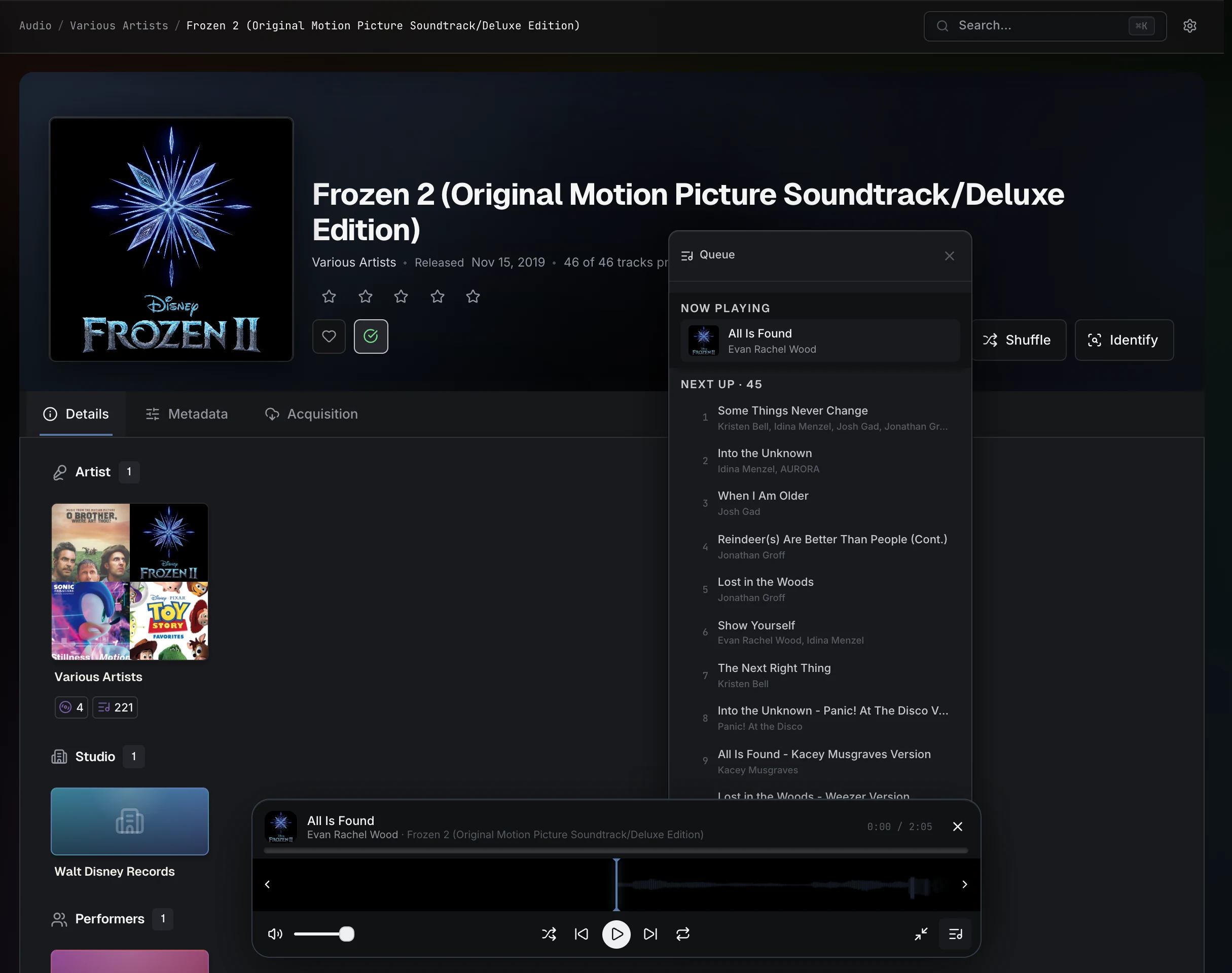
- A real queue with an "Up Next" list you can open and jump around.
- Shuffle builds a fixed shuffled order you can scroll through (not a new random track each time). Albums and artists have Play All / Shuffle.
- Waveform scrubbing, full transport, and play-count tracking.
- Minimize to a compact bubble you can fling to either screen edge; tap the art to restore.
- OS media controls — lock screen, notification shade, media keys, and Bluetooth show the real title and artwork and control playback.
Resume state
Video, audio, and book/comic progress are all tracked so you can resume where you stopped. Finishing an item marks it watched/read and counts the play.
User progress is library state, not file metadata — rescans do not erase it. Prismedia's web and native playback sessions update the same per-account resume position, completion state, and play counts.