Play Music on Web and Native
Start music from an album, artist, or track, then keep browsing your library. The player holds the current track and queue while you move between pages.
Start with an album
- Open Albums and choose an album with imported audio files.
- Choose Play to follow its track order, or Shuffle for a shuffled queue.
- Open the current player to see the track, artwork, progress, and transport controls.
If the album is still Wanted, it needs an imported playable file first. For files that do not appear as expected, check the music folder and metadata rules.
In the web app
The persistent player stays available while you browse. Open Queue to see Up Next and choose another track. Shuffle creates a fixed order, so the list you see is the order that will play.
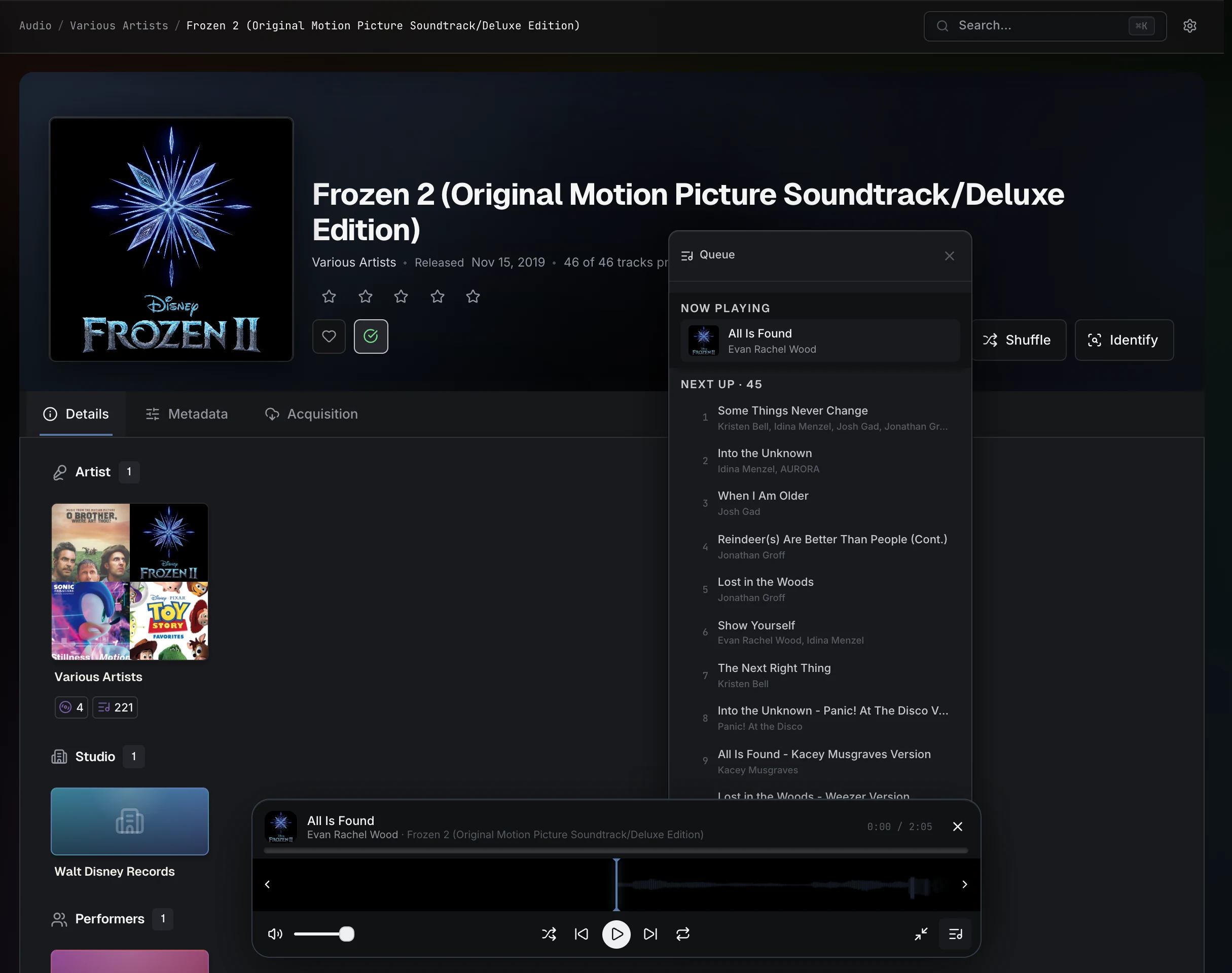
Use the timeline or waveform to seek, and the transport controls to pause or change tracks. You can minimize the player to a compact bubble, move it to a screen edge, and tap its artwork to restore it.
The browser can expose track information and playback controls to the operating system through its media controls. Which controls appear depends on the browser and device.
In the native app
Tap the mini player to open Now Playing. The full player includes artwork, a seek control, playback transport, shuffle, and repeat. Open Show Queue to inspect Up Next, then choose Show Now Playing to return to the artwork and player.
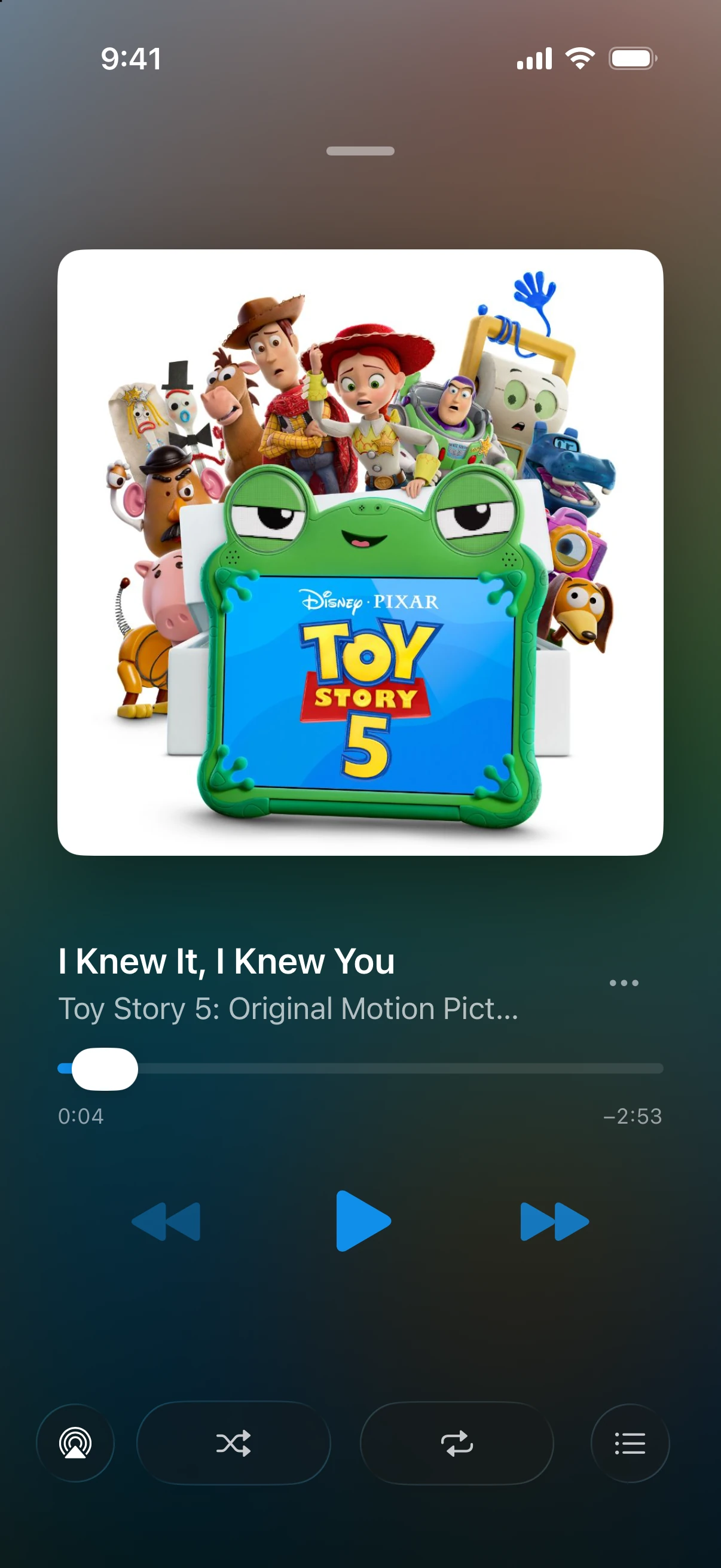
On iPhone and iPad, Choose Audio Output opens the system output picker. Available outputs depend on the device and connected audio routes. System Now Playing controls can also show the current title and artwork outside the app.
Dismiss the full player to browse while playback continues. Audiobook queues preserve their source order; music shuffle controls are not a promise that chapters will play randomly.
Resume on another device
Use the same server and account to share saved playback progress and play history. A saved position is different from a live device handoff: opening another client does not transfer its current queue or make it a remote control for the first player.
For audiobook parts, chapter alignment, and reading alongside playback, use the read-and-listen guide. For installation and connection, see Connect the Native App.