Identify & Metadata
Identify is Prismedia's metadata workflow. It is queue-based, durable, and designed so you can inspect provider suggestions before applying them. For a first run, see Identify & Enrich Your Media.
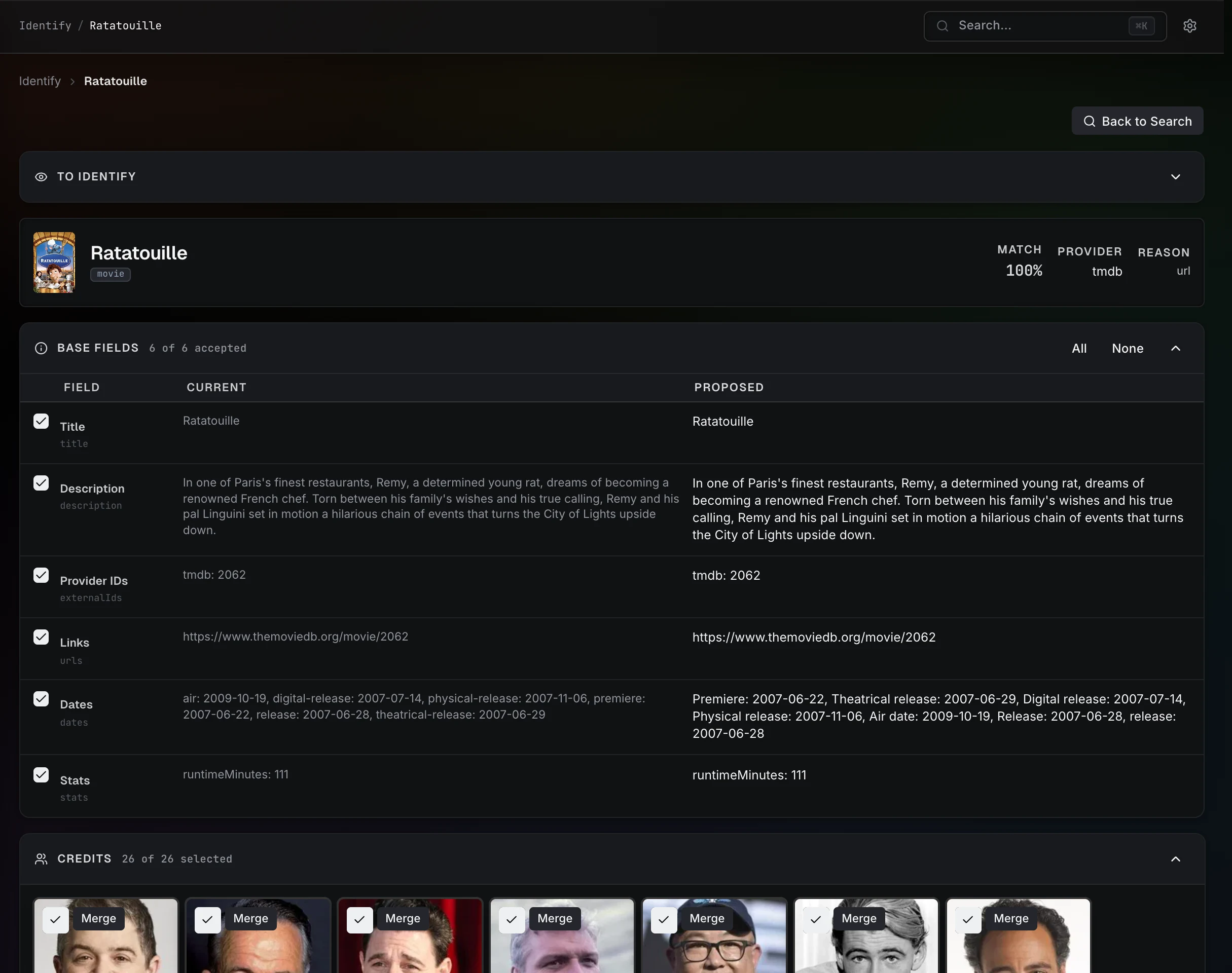
Providers
All providers are plugins and appear together in the Identify provider picker:
| Provider | What it is |
|---|---|
| Native TypeScript plugin | In-process Prismedia provider packages (e.g. TMDB, TVDB, MusicBrainz, YouTube). |
| Python plugin | Providers implemented as Python scripts. |
| Stash-compatible scraper | Stash community YAML scrapers wrapped into Prismedia's provider model. See Stash Compatibility. |
Plugins are installed and configured in Plugins. The deeper model is in the Plugin System Overview.
The Identify queue
Add items from the Identify page, from a detail page's Identify action, or in bulk from a browse page's selection toolbar. Queue state survives navigation and backend restarts.
Identify is offered only for Entities backed by real source media on disk (directly or through their structural children). Wanted and other fileless Entities already carry the metadata chosen when they were requested, so they do not show an Identify action and cannot enter manual or automatic Identify queues. Once imported files are bound to the Entity, Identify becomes available normally.
Each item moves through:
| State | Meaning |
|---|---|
| Search | Waiting for a provider run, or for you to pick from candidate matches. |
| Proposal | A hydrated proposal is ready to review. |
| Done | The accepted proposal has been applied. |
| Error | The last provider attempt failed; retry it. |
If a search is ambiguous, Prismedia leaves the candidates on a picker for you to choose. Confident matches go straight to a proposal. The queue dashboard lists both the current on-disk name and the proposed name, and you can accept rows in bulk.
Reviewing a proposal (cascade)
The review surface shows what will change before anything is saved:
- Base fields — title, date, description, rating, flags.
- Tags, people, studios, links, and provider IDs.
- Poster, backdrop, and (where offered) logo artwork — pick what you want.
- Structural children — a series' seasons and episodes, a book's volumes and chapters, an artist's albums and tracks.
For a container, picking a match identifies the parent and opens its review immediately, then a background pass walks the full tree and streams each child in as it resolves (episodes match by number; music children render as square covers). Children that can't be matched show grayed out as "No match found", Accept stays disabled until the pass finishes, and progress is saved so navigating away or refreshing keeps what's resolved.
You can walk into child and relationship proposals, disable individual cast/studio/tag entries, choose artwork, and accept only when it looks right. On Accept, Prismedia creates missing people/studios/tags, downloads chosen artwork, writes provider IDs, marks items organized, and shows a live "applying" progress row.
Bulk identify
Queuing a batch adds every selected item to the review queue up front and returns you to the dashboard, then searches them there with live progress. Bulk identify runs as a durable background job — it survives app restarts and feeds results into the review queue.
Auto Identify
Auto Identify runs scanned media through your chosen plugins during library scans and applies the first match that meets a confidence threshold (90% by default) or is an exact match — applying the full proposal exactly like a manual identify, including children, relationships, and artwork, then marking the item organized.
- Off by default; opt in from Settings.
- Pick which installed plugins to trust, in what order, and which kinds to cover (video, galleries, images, audio, books).
- Only touches un-organized items by default; an option re-identifies already-organized ones.
- Each watched root has its own toggle, so you can exclude specific libraries.
Identifying everything automatically makes scans take longer; enable it deliberately.
Plugin management
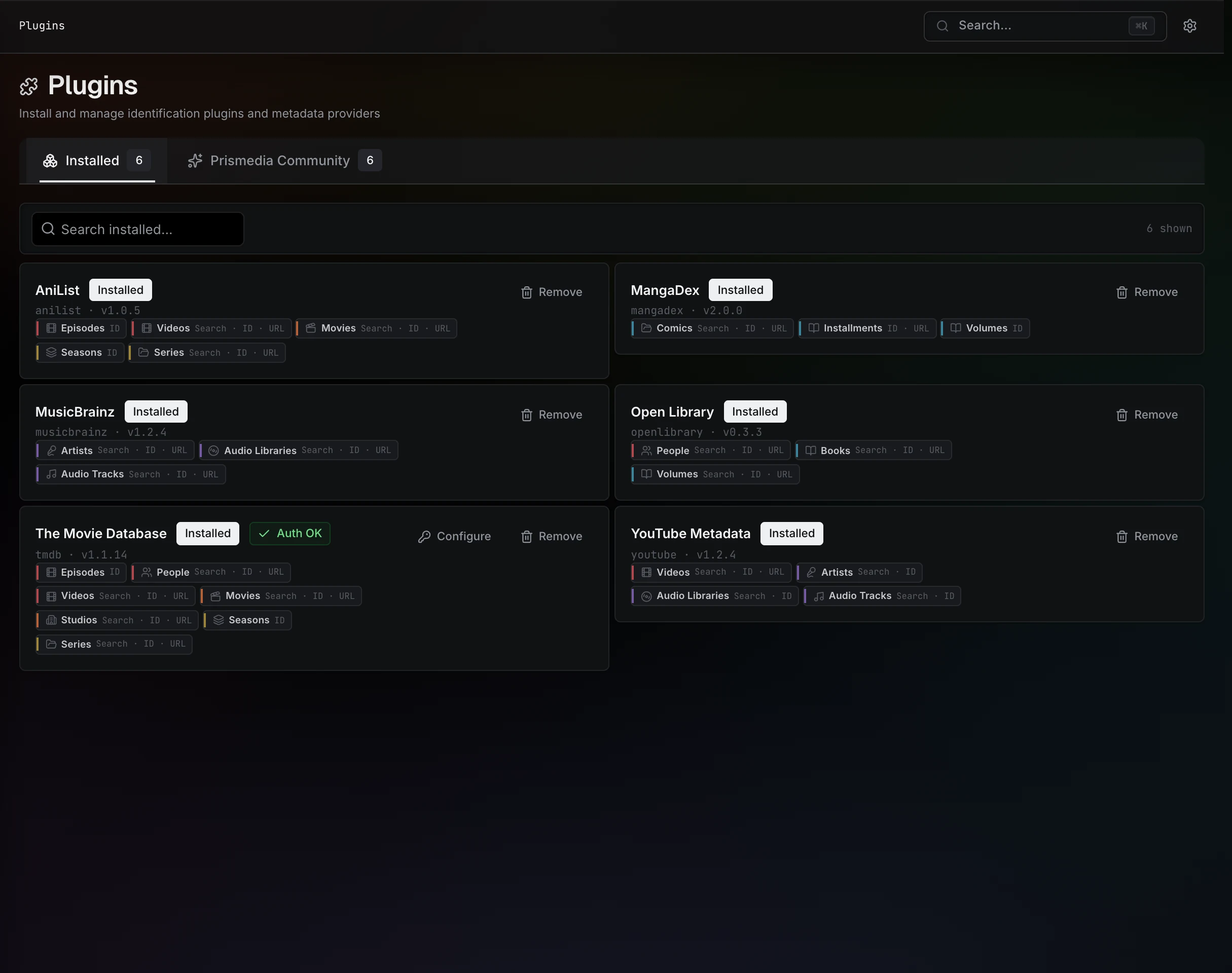
Use Plugins to:
- Browse installed plugins (with capability and source info).
- Install community packages from the Prismedia Community and wrap scrapers from the Stash Community tab.
- Enable or disable providers.
- Configure credentials (encrypted at rest — see Authentication & User Accounts).
- Update plugins when newer versions are published.
Content ratings and NSFW
Identify respects content ratings even from mainstream providers: when a provider returns a mature rating (R, NC-17, TV-MA, 18+, pornographic, and similar), that proposal — and everything it brings in — is marked NSFW automatically.
Provider lists respect the current visibility mode. NSFW providers (every Stash scraper, plus any plugin marked NSFW) are hidden while you browse in SFW mode — from the Plugins page, the Auto Identify picker, and the identify provider options — until you reveal NSFW content. Visibility also filters queue totals and review rows so hidden content doesn't leak through Identify.