Browsing The Library
Prismedia has two complementary views of your library:
- Browse pages show catalog entities: movies, series, videos, images, galleries, comics, eBooks, audio, artists, people, studios, tags, and collections.
- Files shows watched roots and folders exactly as they sit on disk.
Dashboard
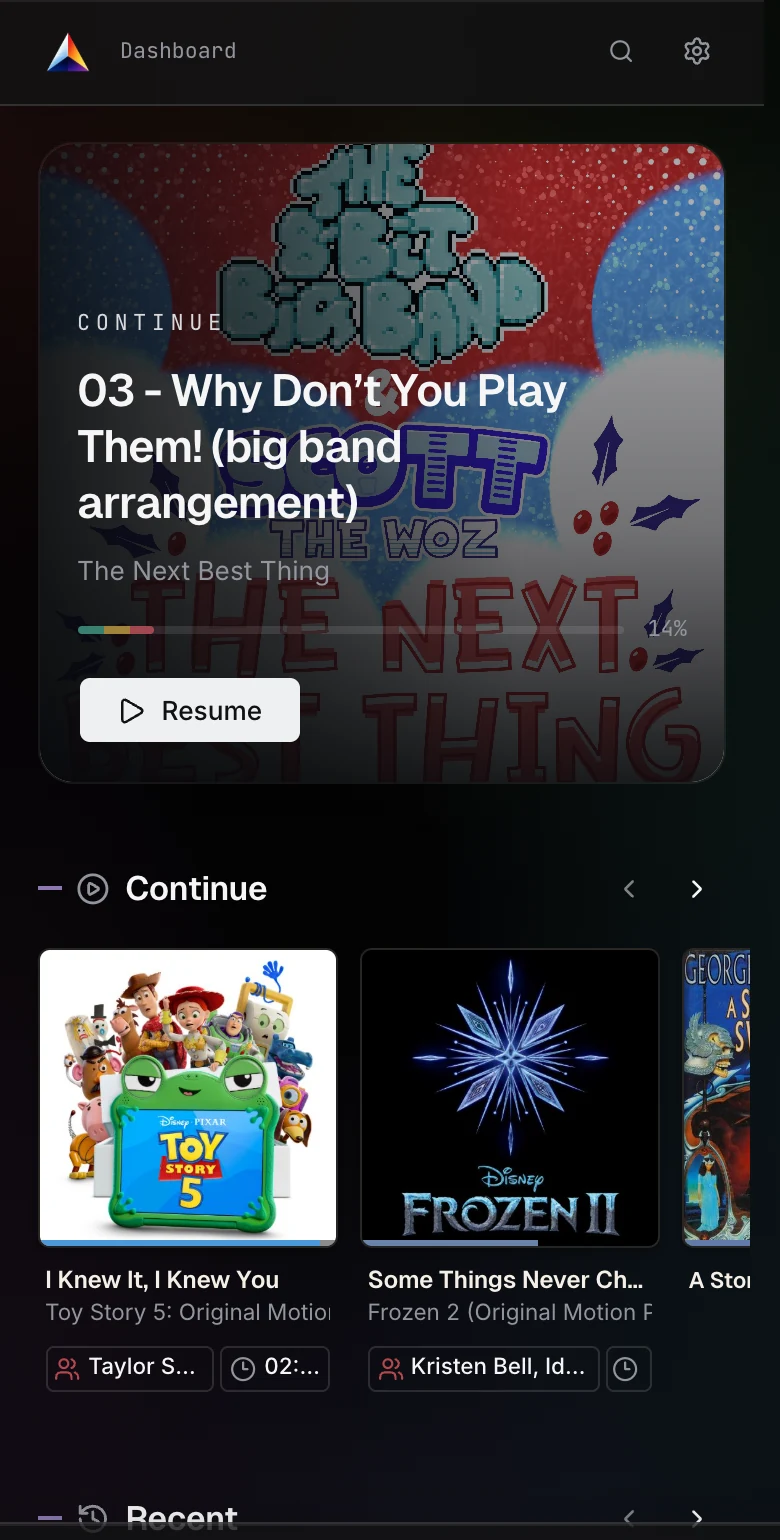
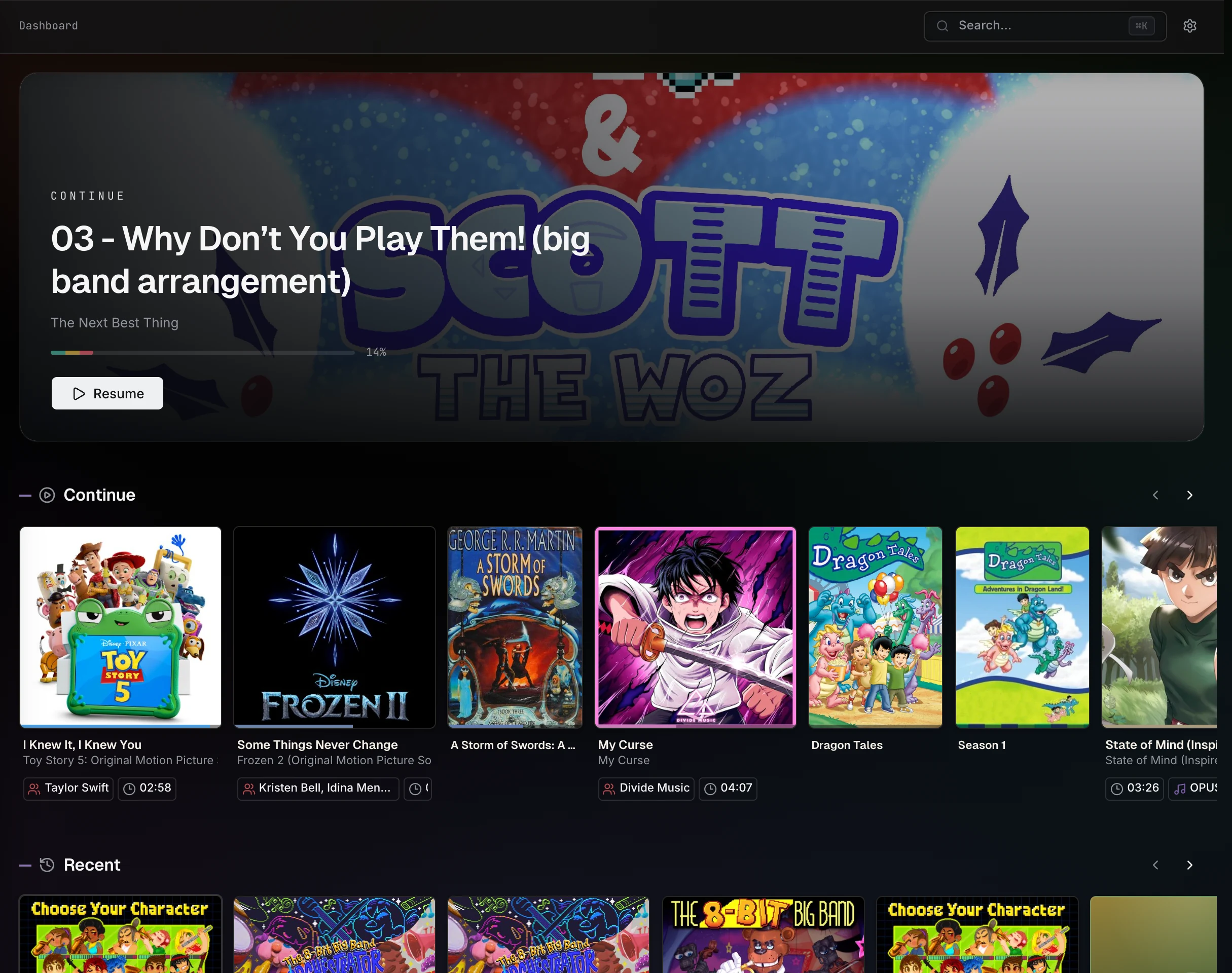
The dashboard opens with your activity: a Continue Watching row of everything you're partway through (videos, shows, and books), a Recently Watched row, and per-type rows that lead with your most recently added items. It also surfaces library totals, worker state, and update notices.
Movies, series, and videos
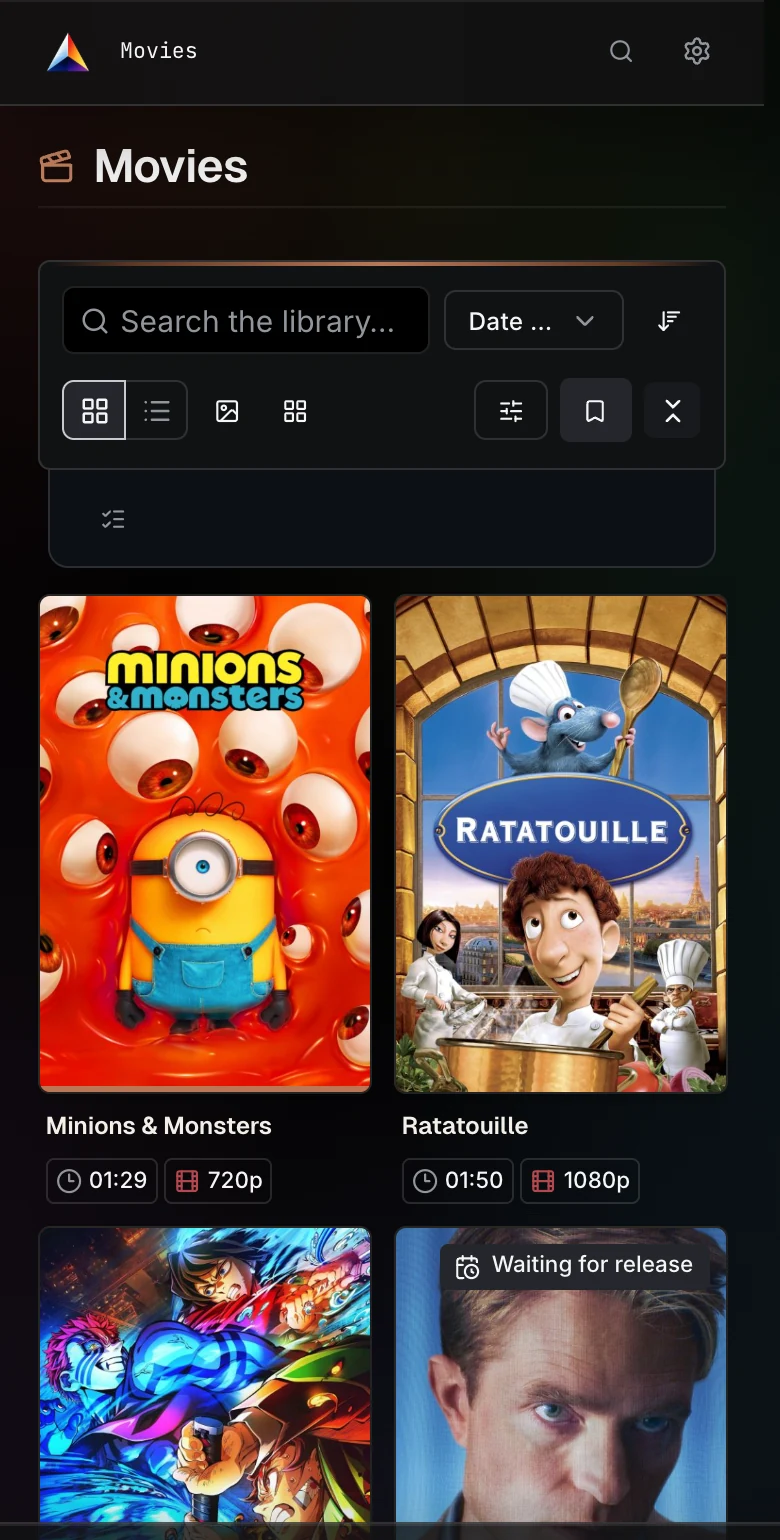
- Movies are single-file movies in their own folders (see Videos, Movies & Series). They get their own posters and detail pages.
- Series groups videos into series, seasons, and episodes. Episodes opened from the Videos library link back to their show via a breadcrumb and a series cover in the Details tab.
- Videos is the flat view of standalone videos.
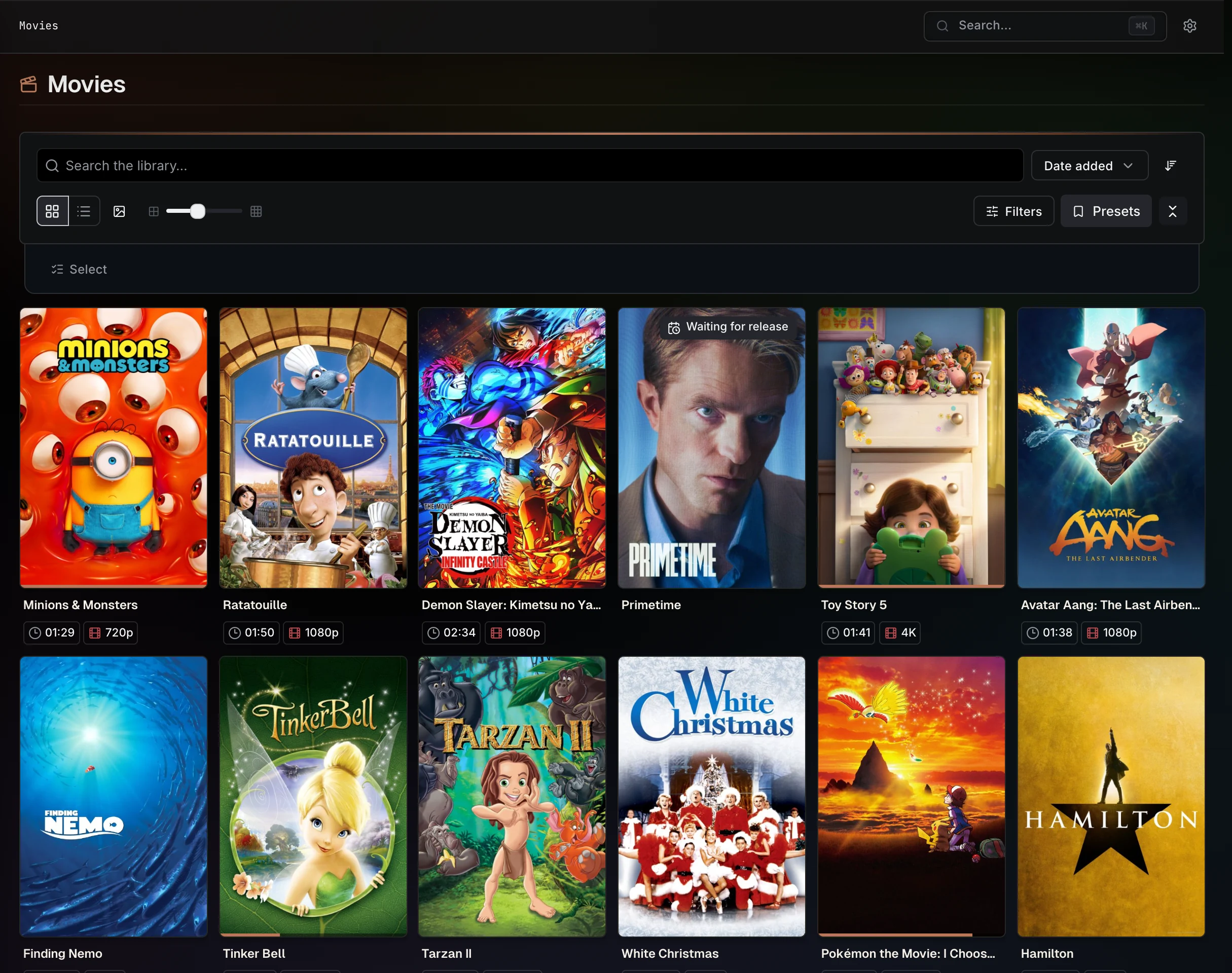
All three support grid, list, and media-wall browsing, library-wide search, sort, filters, and bulk actions.
Images and galleries
Images are loose image files. Galleries are folders of images and animated clips, and they nest. Gallery details show child galleries, image grids, metadata, ratings, tags, linked people/studios, and artwork.
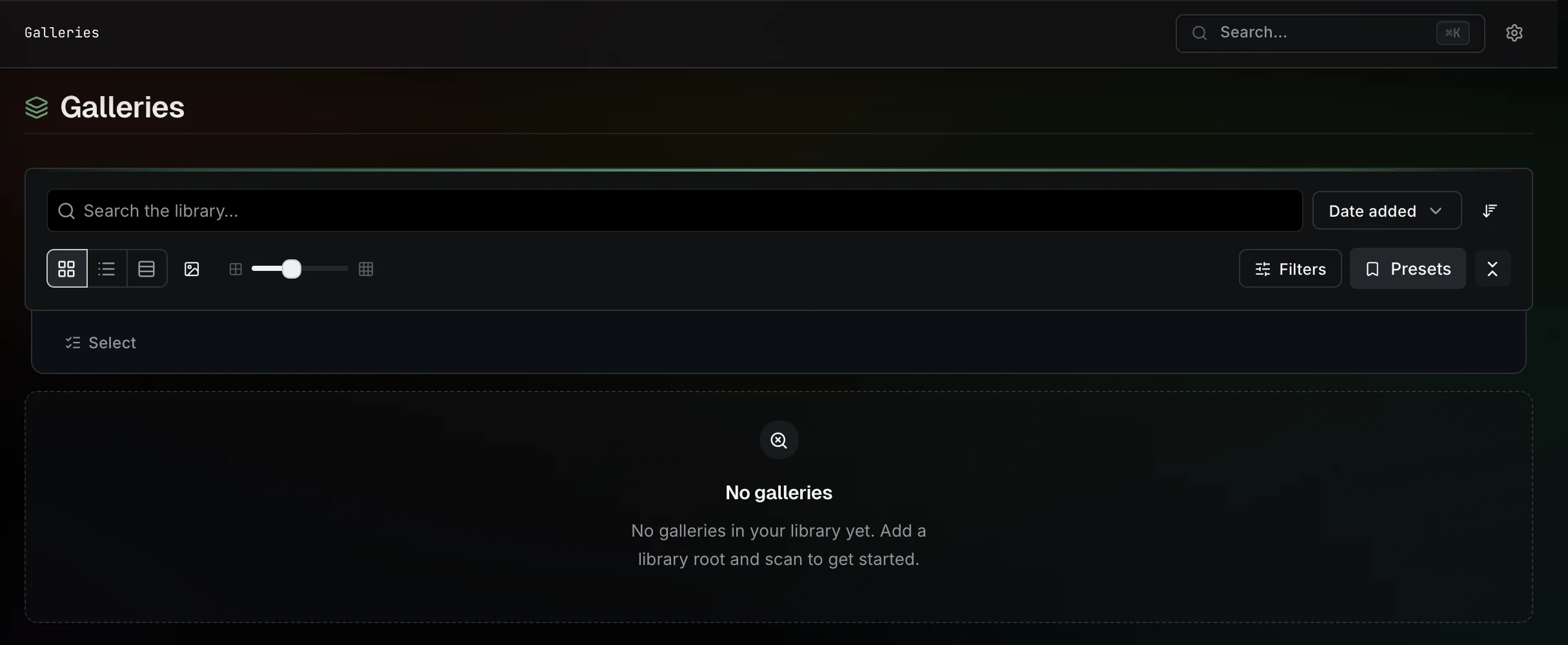
Browse images and galleries as Grid, List, or Feed (a full-width column at each item's real shape, with animated items playing inline). Clicking an item opens the universal lightbox.
Comics, eBooks, and audiobooks
The Comics section narrows the Books library to comics and manga; eBooks narrows it to EPUB/PDF books and novels; Books lists everything, including audio-only books and Books with both reading and listening renditions. See Books, Comics, eBooks & Audiobooks.
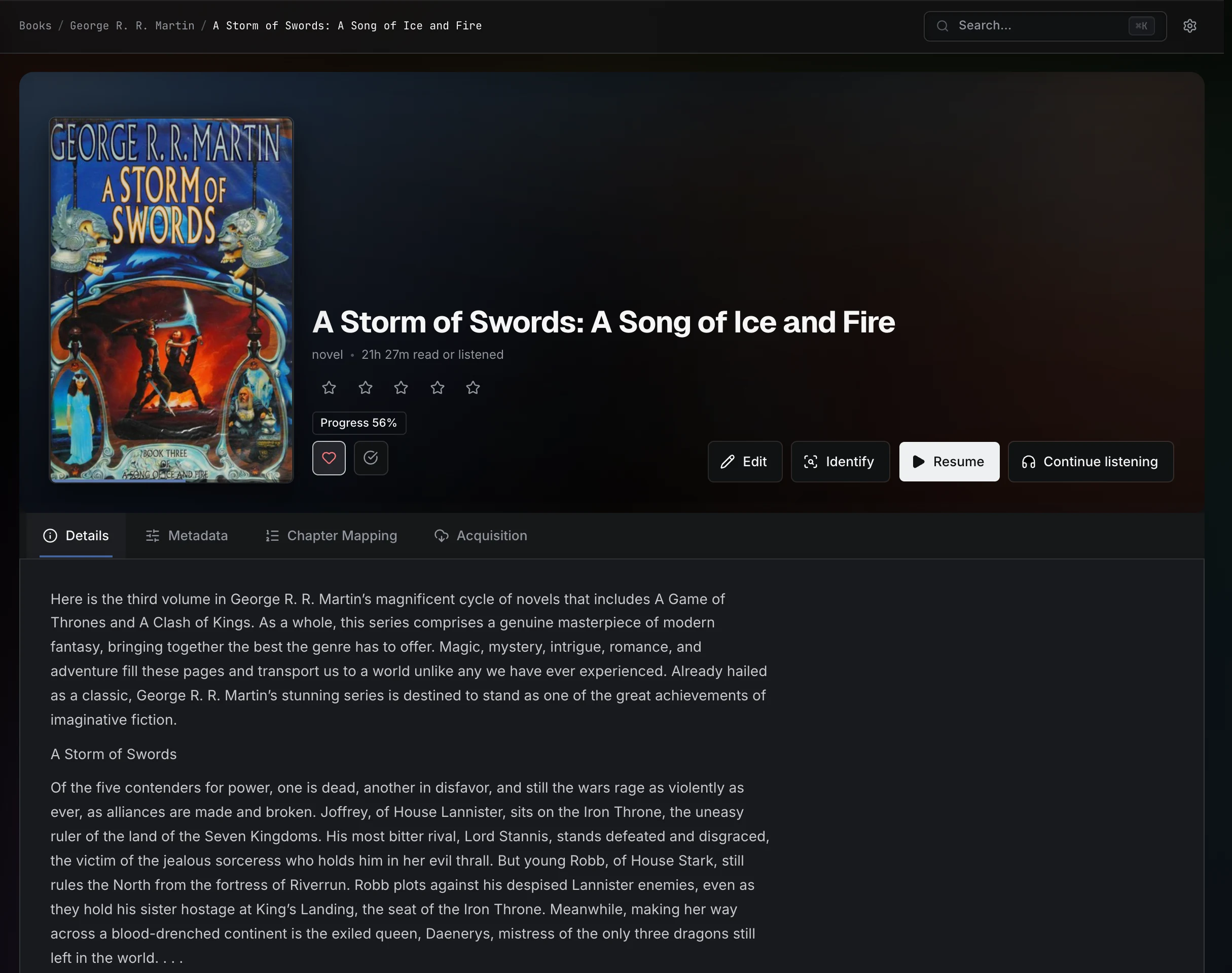
Books open in a focused reader with paged/vertical (and PDF scroll) modes, resume state, and chapter/volume navigation. Audiobooks expose ordered listening parts and independent listening progress from the same Book detail page.
Audio
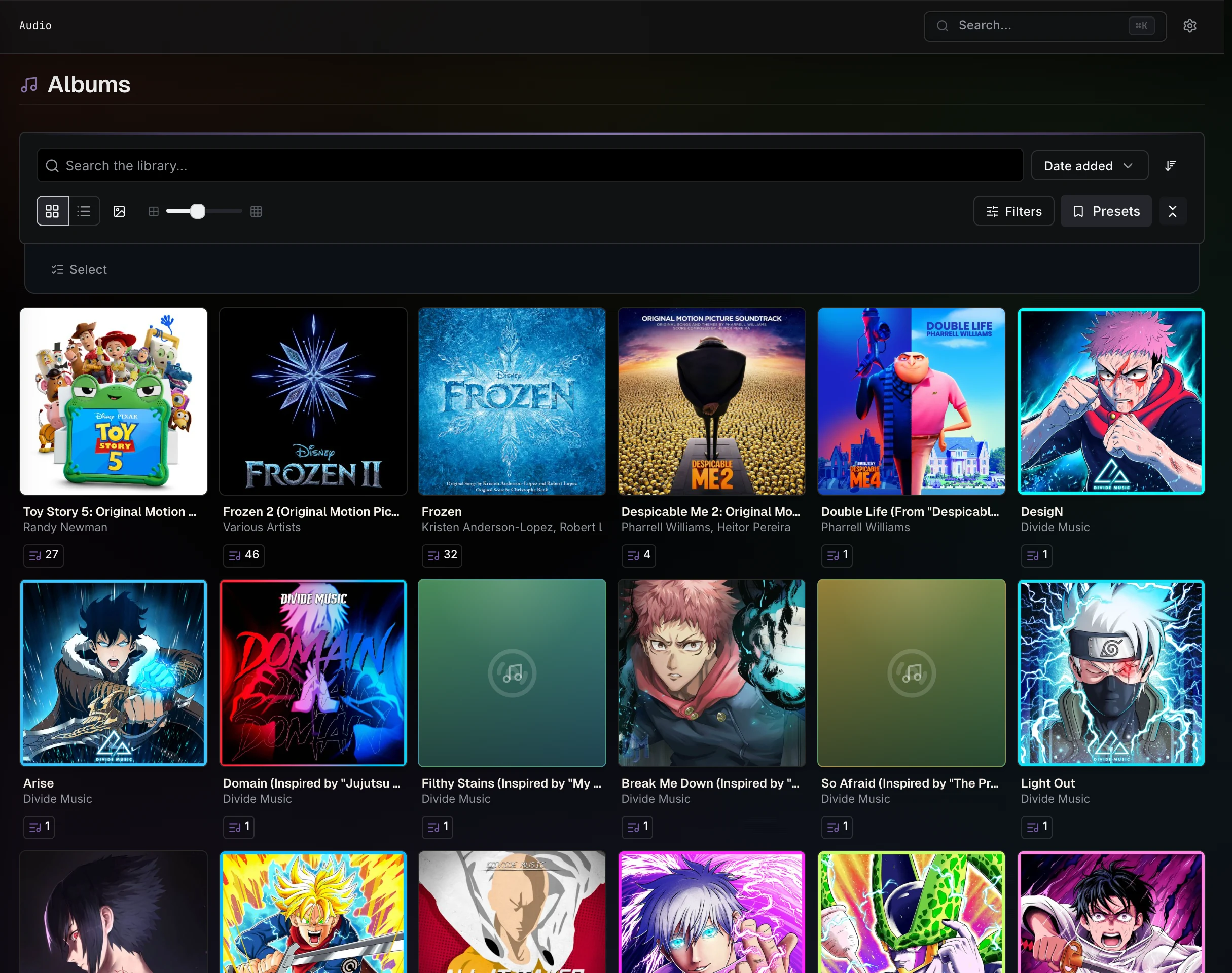
Audio is folder-backed artists, albums, and tracks. Library detail pages show sub-libraries, album-style track lists, cover art, ratings, resume state, and linked metadata. Starting a track opens a persistent player that survives navigation.
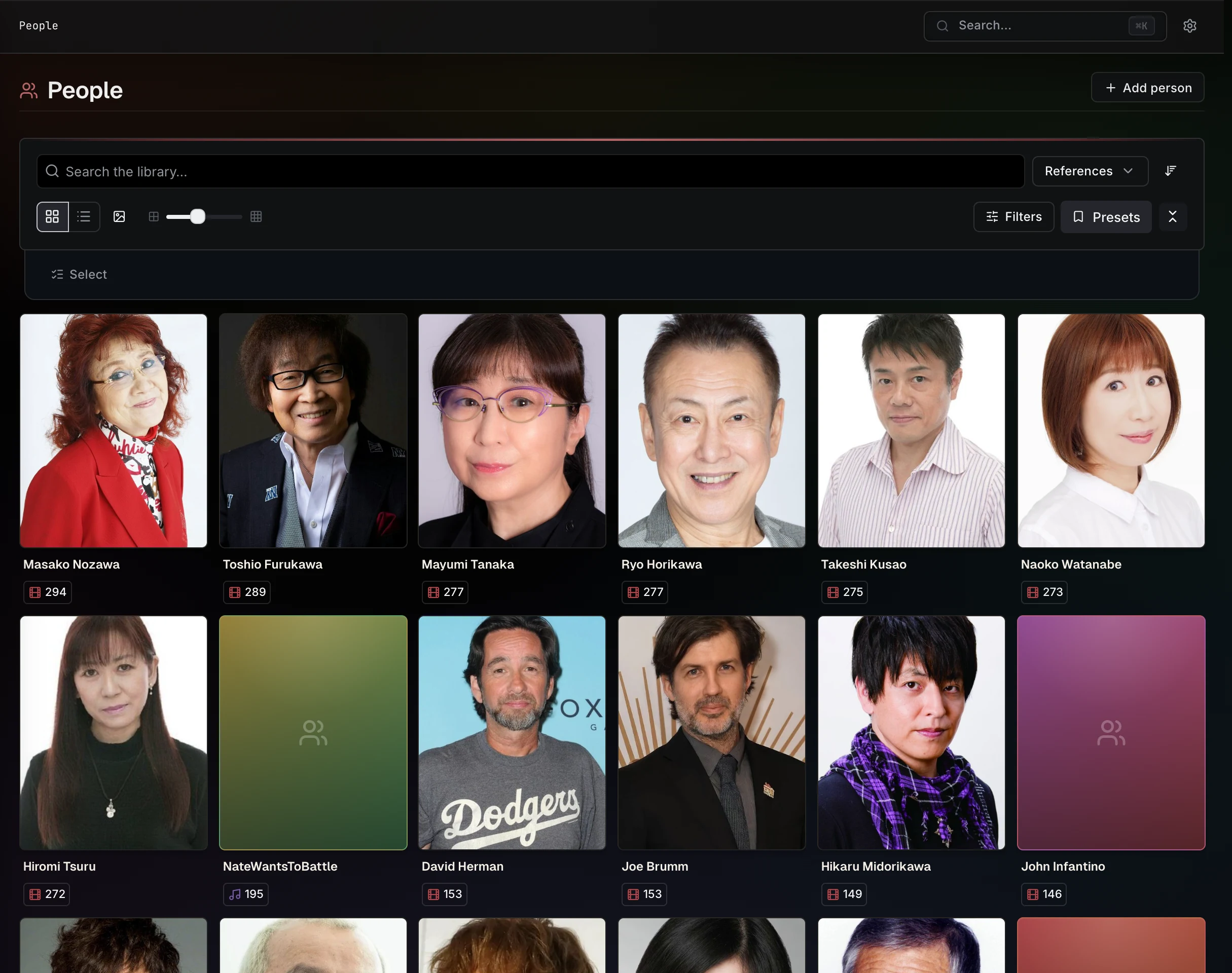
People, studios, and tags
People, studios, and tags are library entities, not just labels. Their detail pages list associated movies, series, videos, images, galleries, books, and audio from explicit relationships. Library cards carry live reference-count chips, and you can create, delete, sort by usage, and filter for orphaned entries from these pages.
Collections
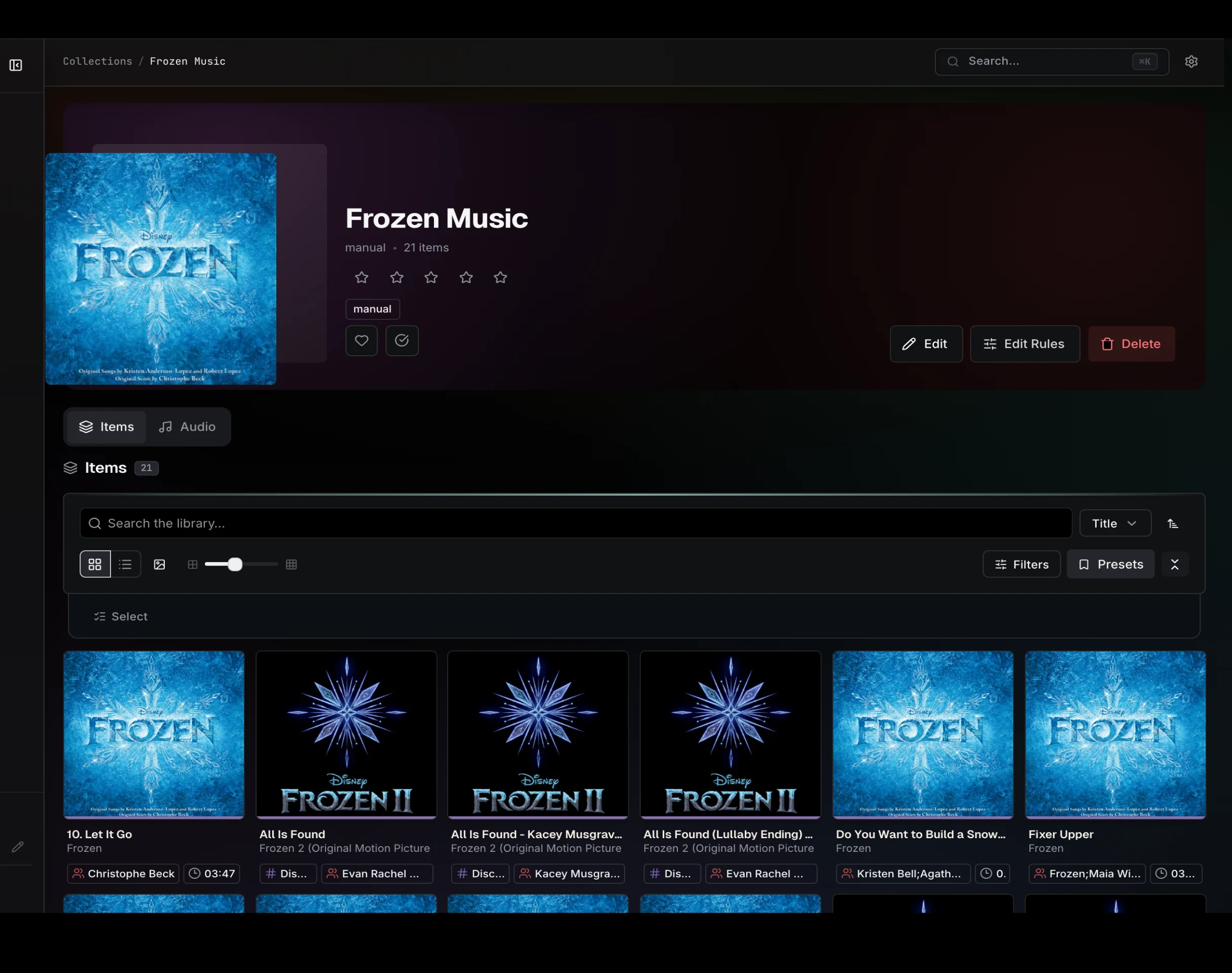
Collections are simple groupings for browsing and curation — manual, dynamic (rule-driven), or hybrid. See Collections.
Files
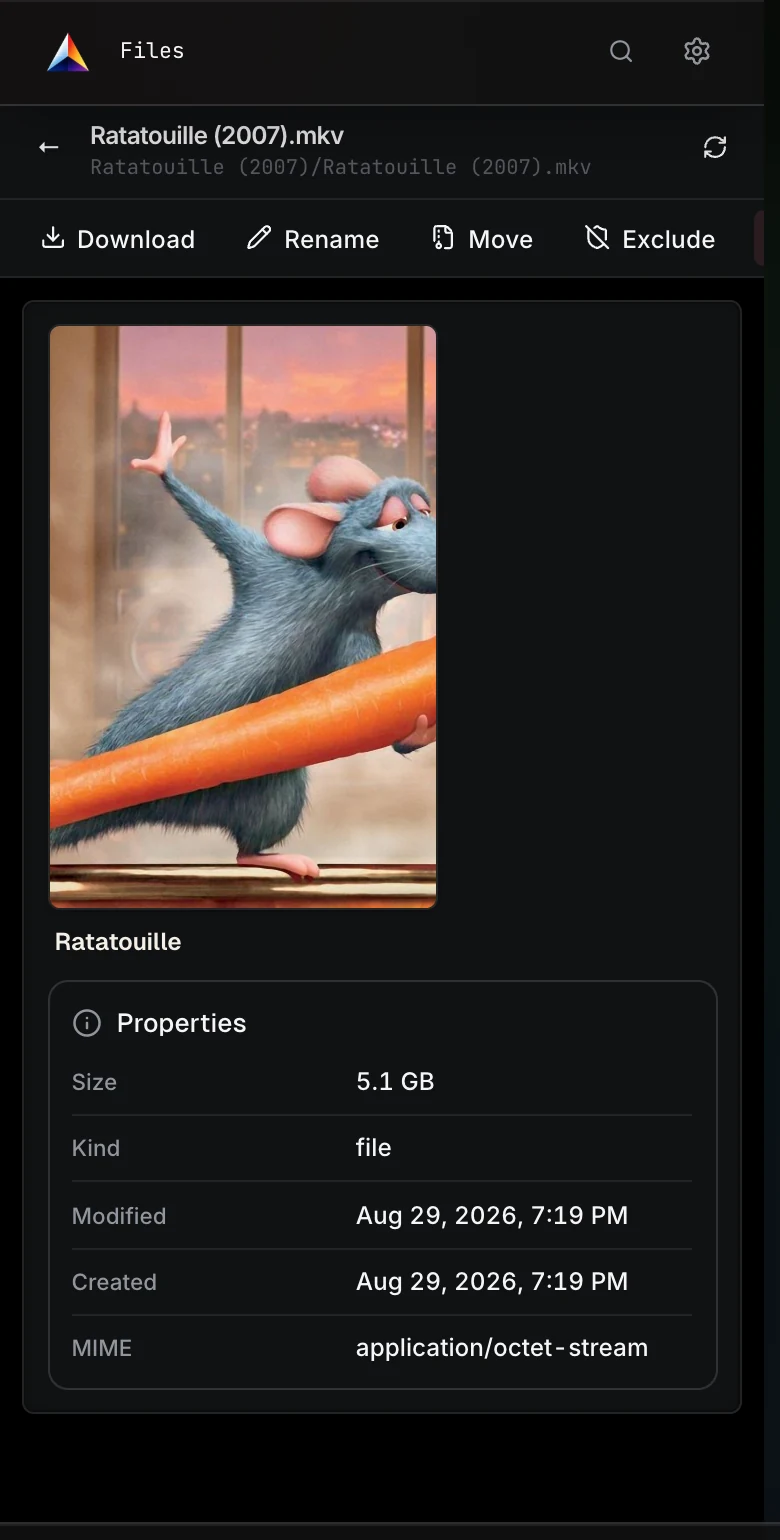
The Files workspace is the file manager for watched roots.
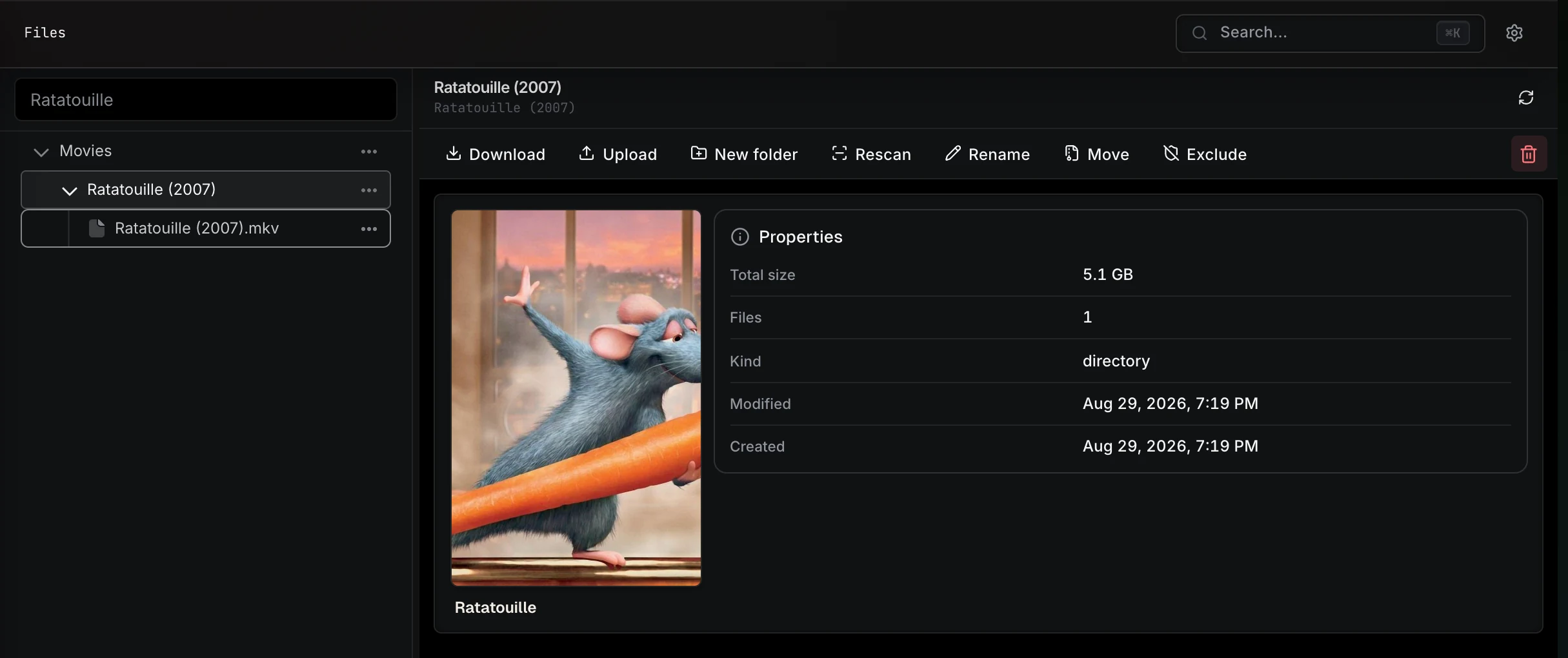
From Files you can:
- Open linked catalog entities.
- Create folders and upload files.
- Rename and move files or folders.
- Rescan a root, folder, or file.
- Exclude paths from future scans and remove exclusions later.
- Delete files or folders when the media mount is writable.
Files opens with folders collapsed. Use Browse for media metadata; use Files for source-folder control.
Managing source media
The shared Delete files action on an Entity's Acquisition tab works across movies, series, seasons, videos, galleries, images, books, volumes, authors, albums, tracks, and artists whenever Prismedia can safely own the underlying source paths. A monitored Entity returns to Wanted and starts a clean replacement search after deletion; an unmonitored Entity is removed once its managed files are gone. Generated previews, waveforms, and trickplay are cleaned up with the source operation; full Entity removal also clears its grid thumbnails and downloaded artwork.
Library views, sort, and filters
Grids sort and filter across the entire collection, not just the loaded page:
- Sort: Date added (newest, the default), Title (ignoring leading "The/A/An"), Rating, and Random (a stable shuffle across pages, with a reshuffle button).
- Filter: adaptive playback/reading state (Watched/Unwatched/In progress or Read/Unread/Reading), Favorites, Organized, NSFW, ratings, and shared Availability states. Availability distinguishes real On disk source ownership from Wanted, Pending, Searching, Downloading, Imported, Failed, Cancelled, and Needs attention acquisition states; it does not treat artwork as a media file.
- Views: Grid, List, Feed (images/galleries), and a media-wall toggle.
Each grid remembers its search, sort, view, card size, and toolbar state per page and per device.
Search and command palette
The dedicated Search page spans every entity type and highlights direct matches first, followed by related media for matched people, studios, and tags.
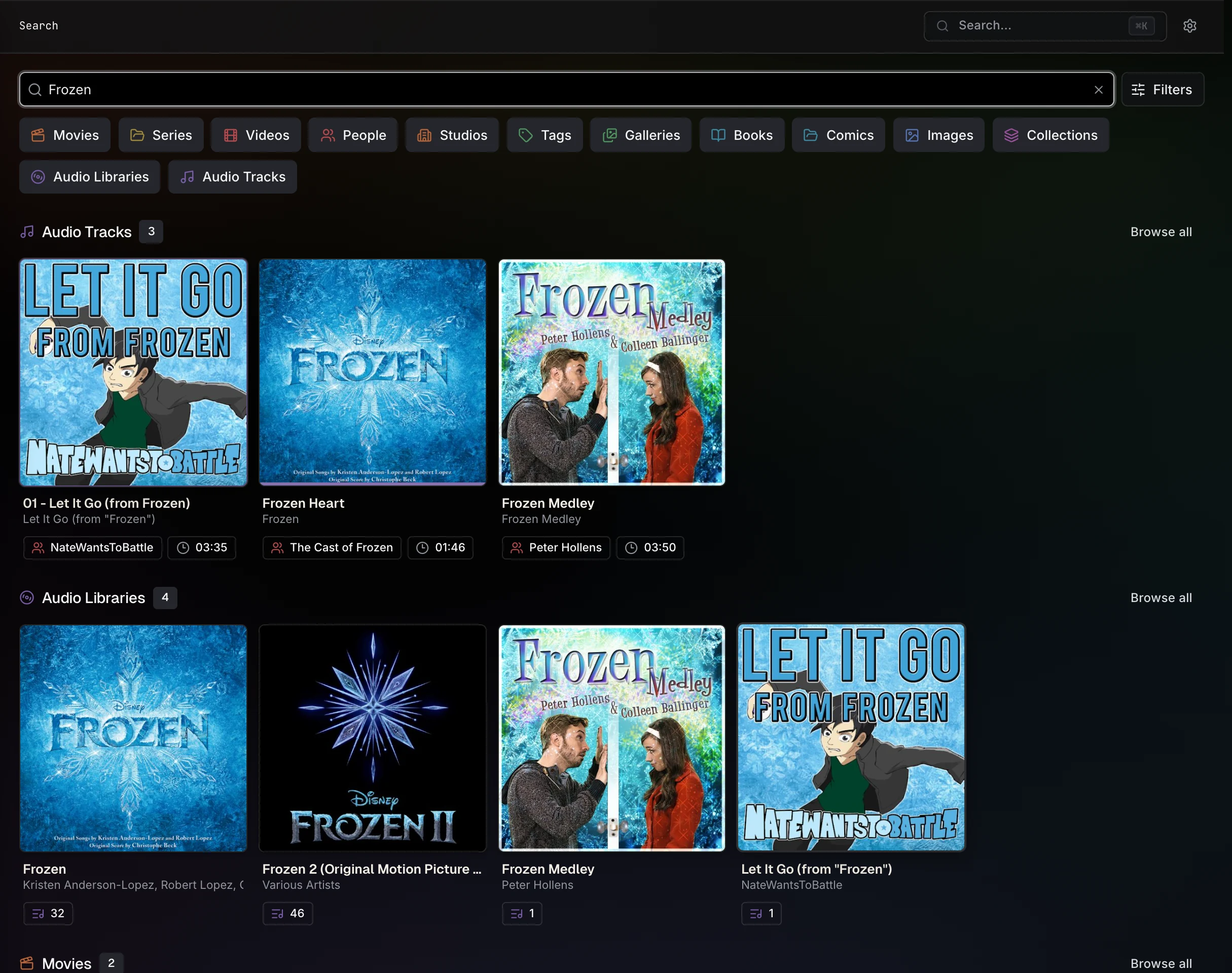
Press Cmd+K (macOS) or Ctrl+K (elsewhere) to open the command palette from any page. Results are grouped per category with a "See all" link.
Mobile
Mobile keeps primary browse and operate surfaces reachable from touch-first layouts, with a bottom bar and a swipe-up navigation drawer. Detail pages, grids, readers, lightboxes, Files, and audio playback all avoid hover-only core actions. See Navigation & Mobile Gestures.