Organize Your Media Folders
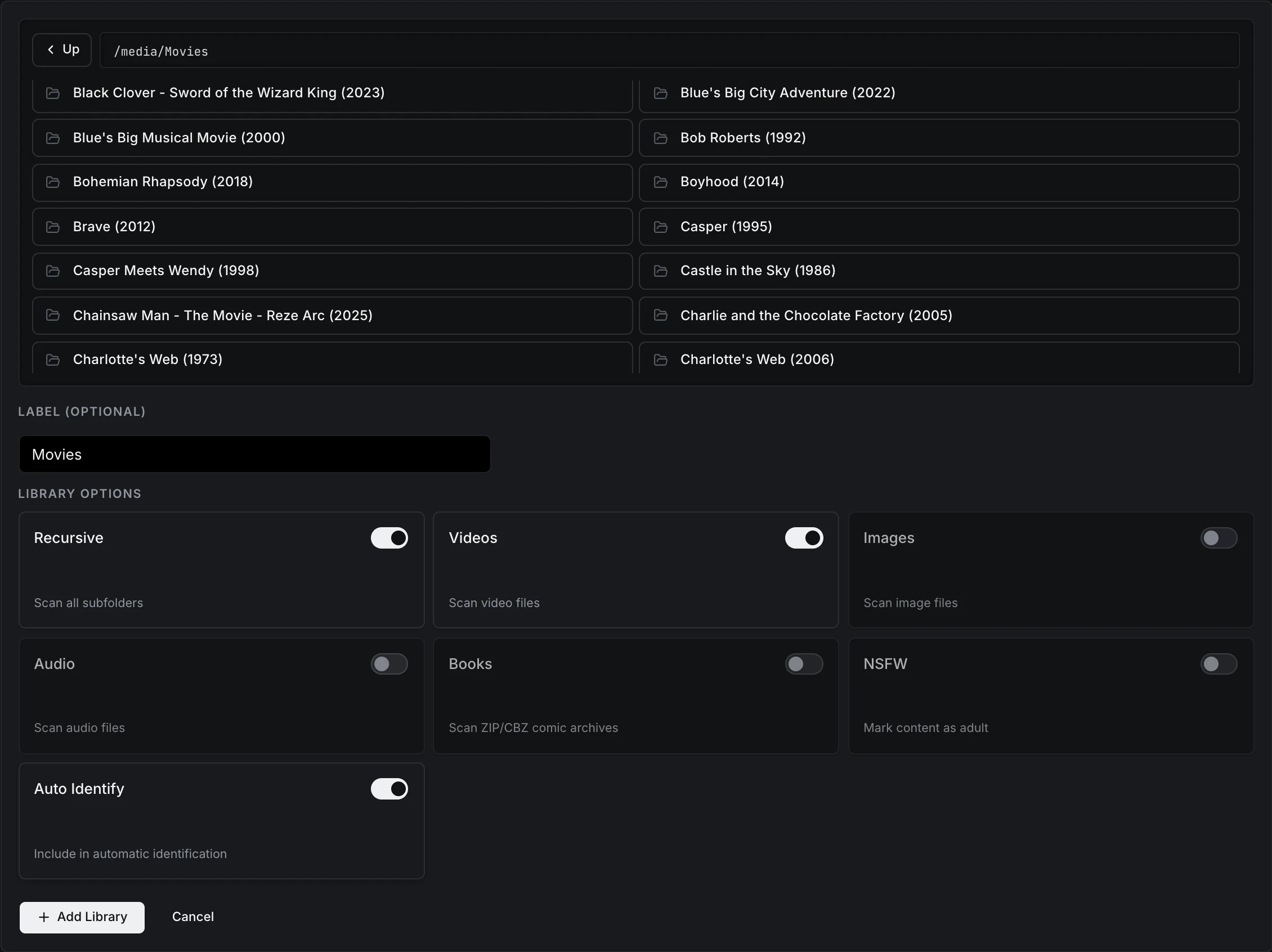
Start with one folder for each media family. In Settings → Watched Libraries, choose Browse Folder, navigate to each mounted folder, enable its matching scan type, and choose Add Library. You only need the folders for media you actually have.
A watched root tells Prismedia where to start looking. The folders and filenames below that point help it decide whether a file is a movie, episode, album track, book, or comic installment. Scanning catalogs existing files; acquisition imports new downloads using the destination and naming rules you configure.
The three paths to understand
Suppose your media lives at /srv/media on your server and Docker mounts it as /media:
volumes:
  - /srv/prismedia:/data
  - /srv/media:/media
These are example host paths; substitute your own. Keep the rest of the container configuration from Install & Run.
| What you are choosing | Example | Where it is used |
|---|---|---|
| Host folder | /srv/media/movies | Your server's filesystem. Put existing movie folders here. |
| Container mount | /srv/media:/media | Docker makes the host folder available to Prismedia as /media. |
| Watched root | /media/movies | Enter this path in Prismedia's Watched Libraries. |
/data stores Prismedia's database and generated assets. /media makes your collection accessible. Adding a watched root does not create a Docker mount or make an otherwise inaccessible host folder visible.
A recommended starting layout
The names below are examples, not mandatory folder names. The layout relative to each watched root is what matters.
/media/
├── movies/                         ← watched root: Videos
│   └── Example Film (2025)/
│       └── Example Film (2025).mkv
├── tv/                             ← watched root: Videos
│   └── Example Show/
│       └── Season 01/
│           └── Example Show - S01E01.mkv
├── music/                          ← watched root: Audio
│   └── Example Artist/
│       └── Example Album/
│           ├── 01 - Opening.flac
│           └── 02 - Evening.flac
├── books/                          ← watched root: Books
│   └── Example Author/
│       └── Example Book/
│           ├── Example Book.epub
│           ├── 01 - Beginning.m4b
│           └── 02 - Journey.m4b
├── comics/                         ← watched root: Books
│   └── Example Comic/
│       ├── Issue 001.cbz
│       └── Issue 002.cbz
└── images/                         ← watched root: Images
    └── Example Gallery/
        ├── 001.jpg
        └── 002.jpg
Use separate roots for /media/movies, /media/tv, /media/music, /media/books, /media/comics, and /media/images. Leave Recursive on for these examples. Enable only the indicated scan type on each root.
Enable Books for EPUBs, PDFs, audiobooks, and comic archives. Audio is the music scanner. Enabling both on an audiobook root makes supported audio files eligible for music classification too.
What each layout produces
| Media | Layout below its watched root | Expected result |
|---|---|---|
| Movie | Example Film (2025)/Example Film.mkv | A movie, when the direct child folder contains one video and no episode or season structure. |
| TV | Example Show/Season 01/Example Show - S01E01.mkv | A series, season, and episode. |
| Music | Example Artist/Example Album/01 - Opening.flac | An artist, album, and track. Album/Tracks also works without an artist folder. |
| Book | Example Author/Example Book/Example Book.epub | A readable book grouped under an author. Embedded author metadata takes precedence over the folder-name fallback. |
| Book with audio | One EPUB/PDF and its audio parts in the same title folder | One book with reading and listening renditions. Keep each multipart audiobook in its own title folder. |
| Comic | Example Comic/Issue 001.cbz | A comic series with a readable installment. A volume folder can group installments when needed. |
| Gallery | Example Gallery/001.jpg and 002.jpg | A gallery containing the images. |
For exact rules and additional formats, see video, music, books and comics, and images.
Why the watched root matters
With this file:
/media/movies/Example Film (2025)/Example Film.mkv
Choose /media/movies as the root. The film's own folder is then directly below the root, which satisfies the movie-folder rule. Choosing /media adds an extra level; choosing the film folder itself makes the file loose at the root. Neither expresses that same layout.
For existing collections, check a few representative folders against the examples before reorganizing everything. You can often choose a more specific root without moving files. Avoid watching the same content through both a parent root and its child roots: this makes classification and scan settings harder to reason about.
Downloads and imports
Existing files and new downloads enter the library in different ways:
- Existing files: make their folders accessible, add watched roots, and scan.
- New requests: configure metadata plugins, indexers, download clients, and an acquisition profile. Prismedia follows the download and imports it into the profile's target root.
Keep incomplete and completed download staging folders outside the watched library roots. A download is not ready to catalog just because its filename is visible.
Prismedia must be able to access both the download and the destination. If the download client reports a different path, configure a remote path mapping under Settings → Acquisition. A mapping translates a reported path; it does not mount storage or grant access to it.
The acquisition profile controls the destination naming template and whether import moves, copies, or hardlinks files. Moving changes where the files live; copying uses additional storage; hardlinks require the same filesystem. The destination must be writable for imports. See Requests for the complete workflow.
An example with a separate download client
Suppose the download client reports /downloads/complete/Example Film, but Prismedia sees that same
host directory as /incoming/complete/Example Film. The paths differ because each container has its
own mount configuration.
| Setting | Example value |
|---|---|
| Host download directory | /srv/downloads |
| Download client's mount | /srv/downloads:/downloads |
| Prismedia's mount | /srv/downloads:/incoming |
| Remote path prefix reported by the client | /downloads |
| Local path prefix available to Prismedia | /incoming |
| Finished library destination | /media/movies |
Add the corresponding remote path mapping in Settings → Acquisition. It translates the prefix,
so /downloads/complete/Example Film becomes /incoming/complete/Example Film. Prismedia still needs
the real mount and permission to read that directory, plus write permission at the library destination.
Do not add /incoming as a watched library. The acquisition import places verified media in the
finished library. If both containers already see the files at the same path, a mapping is unnecessary.
For hardlinks, the source and destination must be on the same filesystem and visible through a
compatible mount layout; separate Docker mounts can prevent linking even when host paths look related.
Check the first scan
Add one root and check it before adding the rest. Newly added roots start scanning automatically.
- Open Jobs and wait for scanning and relevant follow-up work to finish.
- Open Files to confirm Prismedia can see the expected paths and linked items.
- Open the matching library and check one movie, episode, album, or book.
- Use Identify to review metadata when a title needs enrichment or correction.
| What you see | What to check |
|---|---|
| The folder is missing in Prismedia | Check the Docker mount and filesystem permissions; use the container path in Settings. |
| A movie appears as a standalone video | Its file may be loose at the root. Put each movie in its own folder directly beneath the movie root. |
| Several videos become a series | A folder containing several videos can be classified as a series. Check the video rules before grouping extras with a film. |
| An audiobook appears as music | Use a Books root with Audio disabled for those files. |
| Audiobook parts become separate books | Put the parts in one title folder; root-level audio files are treated as separate books. |
| Several audiobooks become one book | Separate their parts into one folder per title. |
| Reading and listening show as separate books | Put the files together. A matching filename stem is preferred; otherwise the folder must contain exactly one EPUB/PDF for an unambiguous match. |
After correcting files or root settings, rescan from Settings → Watched Libraries, Files, or Jobs, and verify the result again. Continue with Your First Library & Scan.