Identify & Enrich Your Media
Scanning gives you entities backed by files and any sidecar metadata. Identify is how you enrich them with titles, descriptions, dates, ratings, cast, studios, tags, and artwork from a metadata provider.
This page is a hands-on first run. The full reference lives in Identify & Metadata.
1. Install a provider
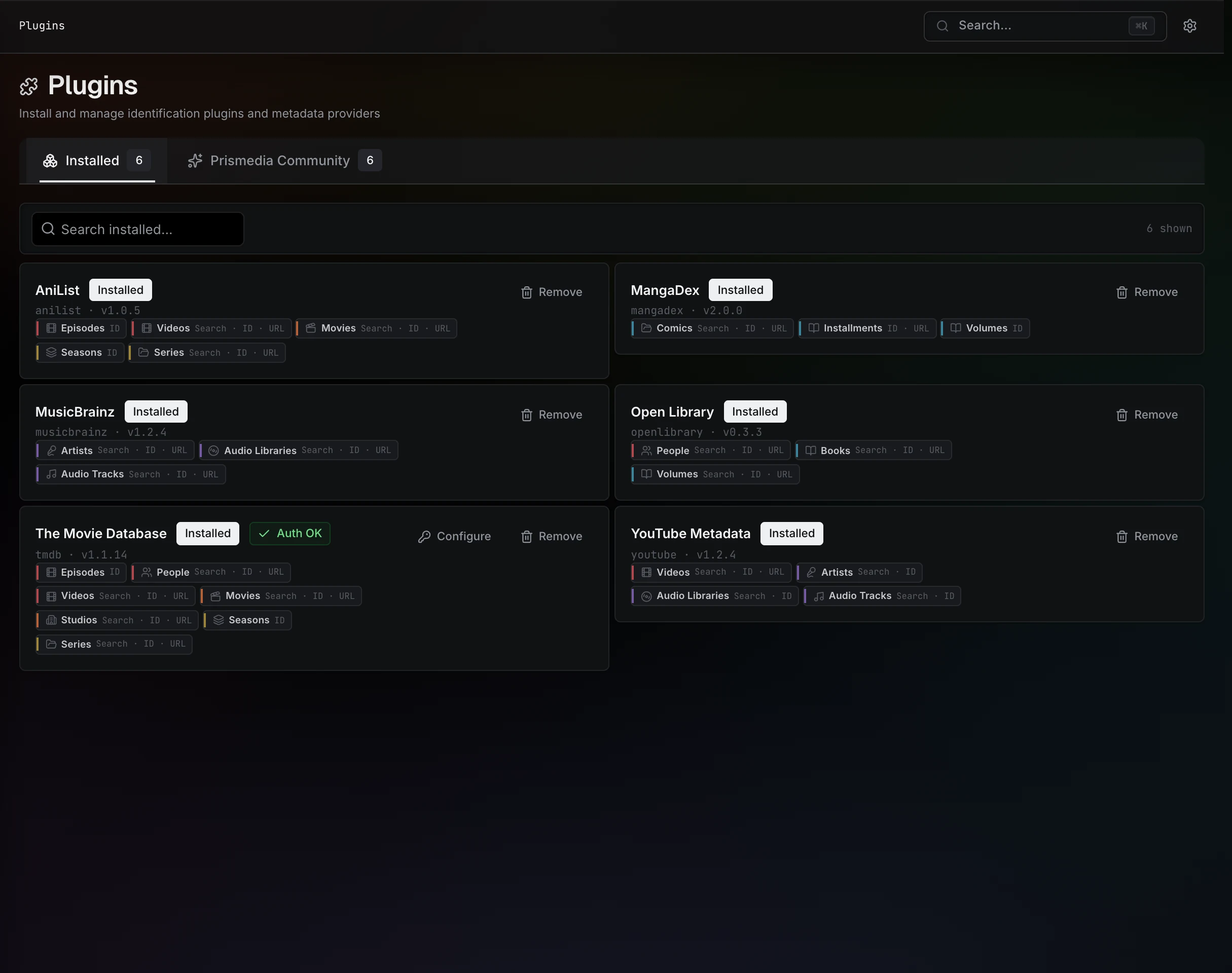
Open Plugins → Prismedia Community and install a provider that matches your library. First-party options include:
| Provider | Good for |
|---|---|
| The Movie Database (TMDB) | Movies and TV series. |
| AniList | Anime and related metadata. |
| Open Library | Books and authors. |
| MusicBrainz | Artists, albums, and tracks. |
| YouTube | Channel/video metadata. |
One click downloads, verifies, and registers the plugin. For adult-site metadata you can also wrap Stash community scrapers — see Stash Compatibility.
2. Add credentials (if required)
Some providers need an API key. Expand the installed plugin in Plugins → Installed, paste the key into its auth field, and save. Credentials are encrypted at rest with the container's PRISMEDIA_SECRET (auto-managed; see Authentication & User Accounts).
3. Identify an item
Open an on-disk movie, series, artist, or book and use its Identify action — or add several on-disk items at once from a browse page's selection toolbar (this runs as a durable background Bulk Identify job). Wanted and other fileless Entities already carry their request metadata and become eligible only after real source files are imported. Items land in the Identify queue.
Each queued item moves through:
| State | Meaning |
|---|---|
| Search | Waiting for a provider run, or for you to pick from candidate matches. |
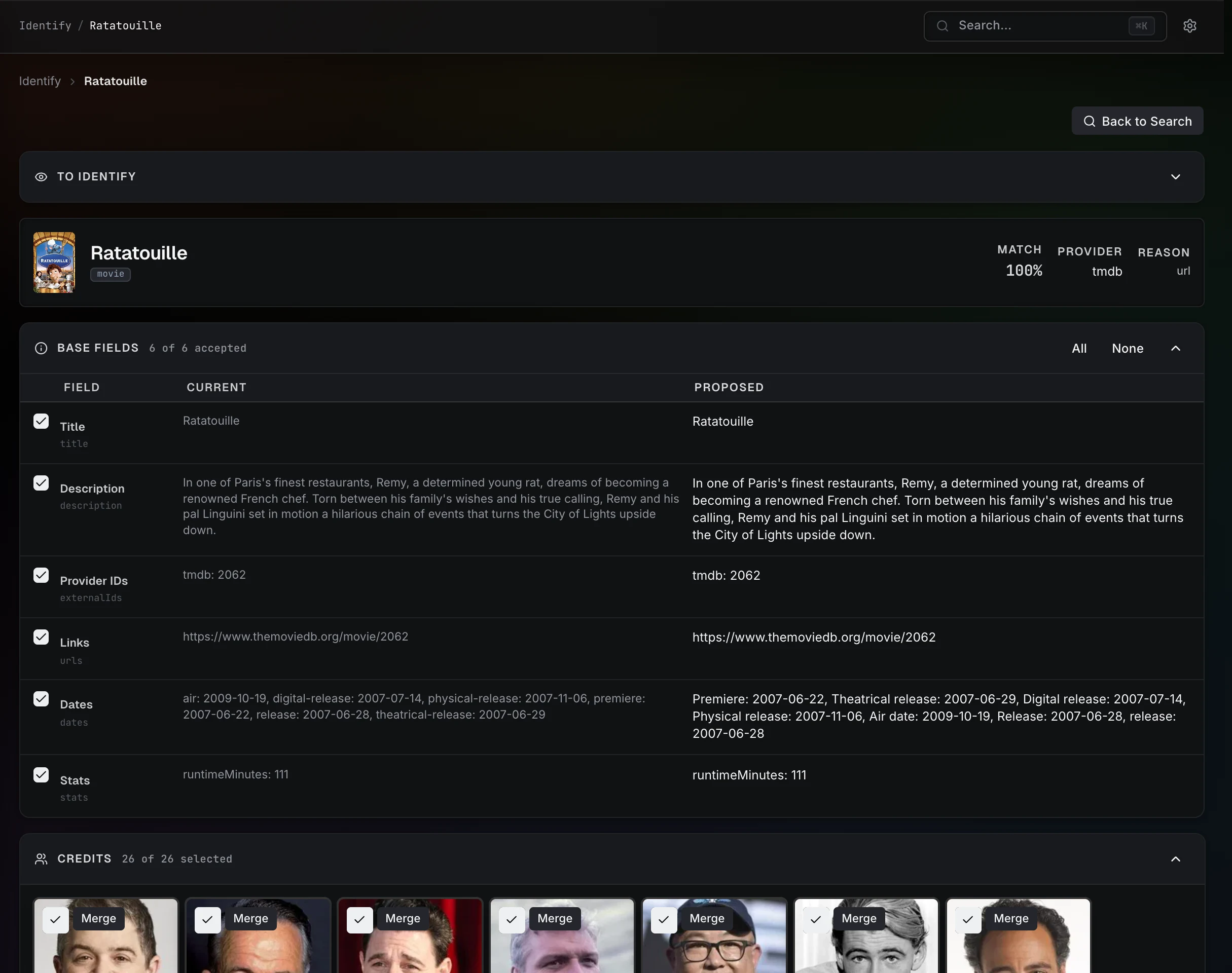
| Proposal | A hydrated proposal is ready to review. |
| Done | The accepted proposal has been applied. |
| Error | The last provider attempt failed; retry it. |
If a search is ambiguous (e.g. a remake exists), Prismedia leaves the candidates for you to choose. Confident matches go straight to a reviewable proposal.
4. Review the proposal
The review surface shows exactly what will change before anything is saved:
- Base fields — title, date, description, rating, flags.
- Tags, people, studios, links, and provider IDs.
- Poster, backdrop, and (where offered) logo artwork — pick the one you want.
- Structural children — a series' seasons and episodes, a book's volumes and chapters, an artist's albums and tracks.
For a container, the children stream in as a background pass resolves each one, so you can start reviewing the parent immediately. Children that can't be matched show grayed out as "No match found", and Accept stays disabled until the pass finishes. Progress is saved as it resolves, so navigating away or refreshing keeps what's already done.
Tick the fields, artwork, and children you want, then Accept.
5. Accept and apply
On Accept, Prismedia walks the proposal tree and applies your selections: it creates missing people/studios/tags, downloads the chosen artwork, writes provider IDs, and marks the items organized. Large cascades show a live "applying" progress row with the entity path currently being written.
Optional: Auto Identify
To skip manual review for confident matches, turn on Auto Identify in Settings. It runs scanned media through your chosen plugins during library scans and applies the first match that meets a confidence threshold (90% by default) — applying the full proposal exactly like a manual identify, including children, relationships, and artwork.
- Pick which installed plugins to trust and in what order.
- Choose which kinds it covers (video, galleries, images, audio, books).
- It only touches un-organized items by default and is off until you enable it.
- Each watched root has its own toggle, so you can exclude specific libraries.
Identifying everything automatically makes scans take longer; enable it deliberately.
Where to go next
- Identify & Metadata — queue mechanics, cascade, NSFW handling, bulk identify.
- Plugin System Overview — how providers work and how to build one.
- Stash Compatibility — wrapping community scrapers.