Playback
This page covers the four viewers — video, comic reader, image, audio — including the controls, the subtitle stack, and the keyboard shortcuts that make them fast.
The video player
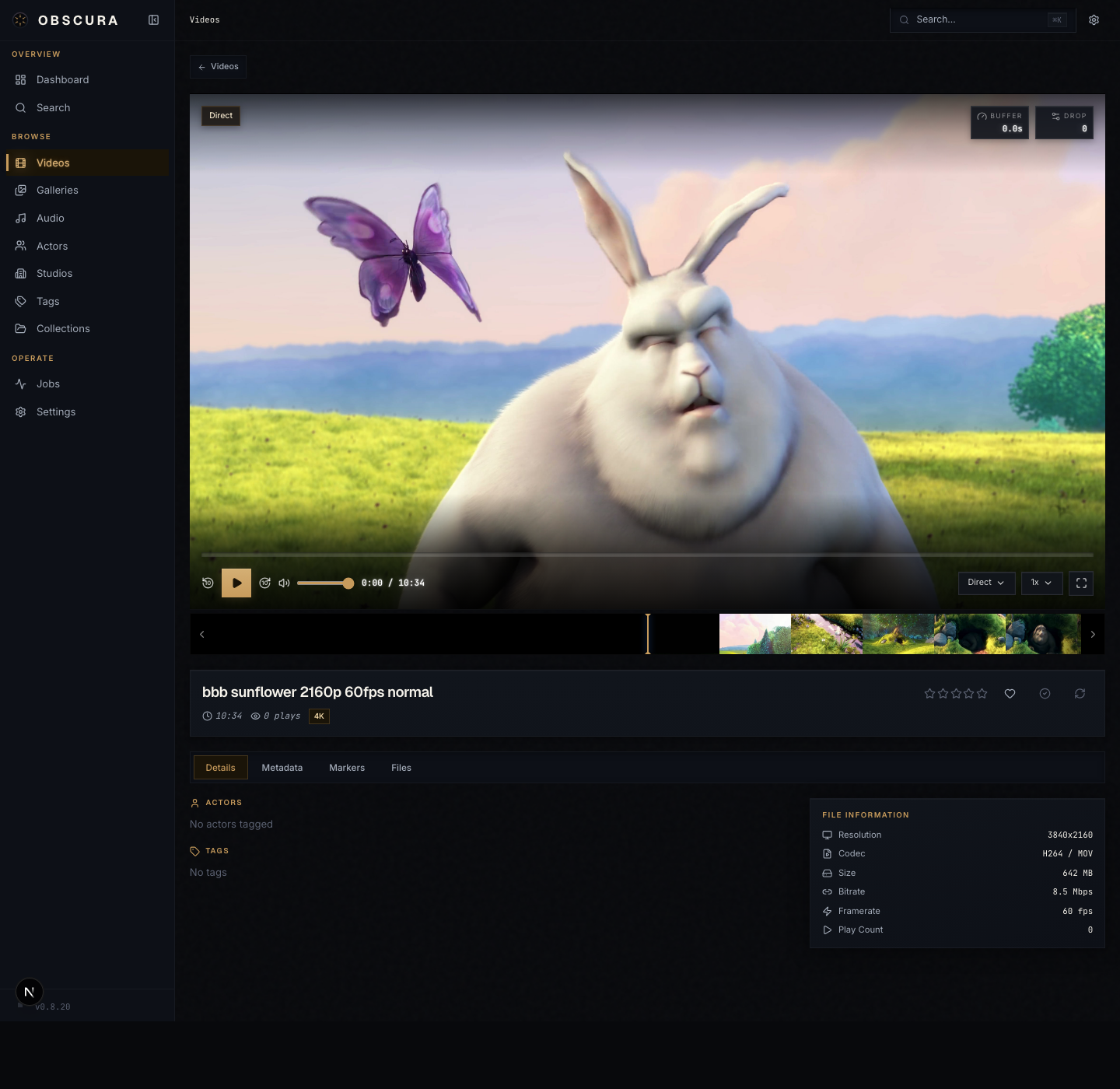
Every video detail page (/videos/[id]) opens with the player at the top, a metadata panel on the side, and tab content below.
Modes: Direct vs HLS
Obscura can play a video two ways:
| Mode | What it does | When it shines |
|---|---|---|
| Direct | Streams the file as-is via HTTP range requests. | Native browser support, low CPU, instant start. |
| HLS | Server transcodes on-demand into multiple bitrates; client adapts. | Always seekable, plays formats the browser doesn't natively support, adapts to network. |
The default mode is set per-instance in Settings → Playback (defaultPlaybackMode). The player's quality menu also lets you switch on the fly: Auto (HLS adaptive) plus a Direct option and per-rendition options like 1080p, 720p, 480p (seeded from your trickplay/preview config).
HLS renditions are generated lazily: the first manifest request enqueues a preview job, and segments stream out as they're encoded. The cache lives at /data/cache/hls/{videoId}/.
Keyboard shortcuts
| Key | Action |
|---|---|
Space or K | Play / Pause |
J or ← | Seek −10 s |
L or → | Seek +10 s |
M | Mute / Unmute |
F | Fullscreen |
Trickplay (timeline hover)
If trickplay generation is enabled (Settings → Generation Pipeline), hover the timeline to see a thumbnail of that point. The thumbnails come from a single sprite sheet at /data/cache/hls/{videoId}/{height}p_thumbnails.jpg referenced by a WebVTT file.
Quality menu
Open the quality menu (gear icon) to:
- Switch playback mode (Direct ↔ Auto/HLS)
- Pick a specific HLS rendition by height
- Change playback speed (0.75×, 1×, 1.25×, 1.5×, 2×)
Subtitles
Obscura handles SRT, VTT, ASS, and SSA — with embedded tracks extracted to WebVTT during the extract-subtitles job.
Defaults (Settings → Subtitles)
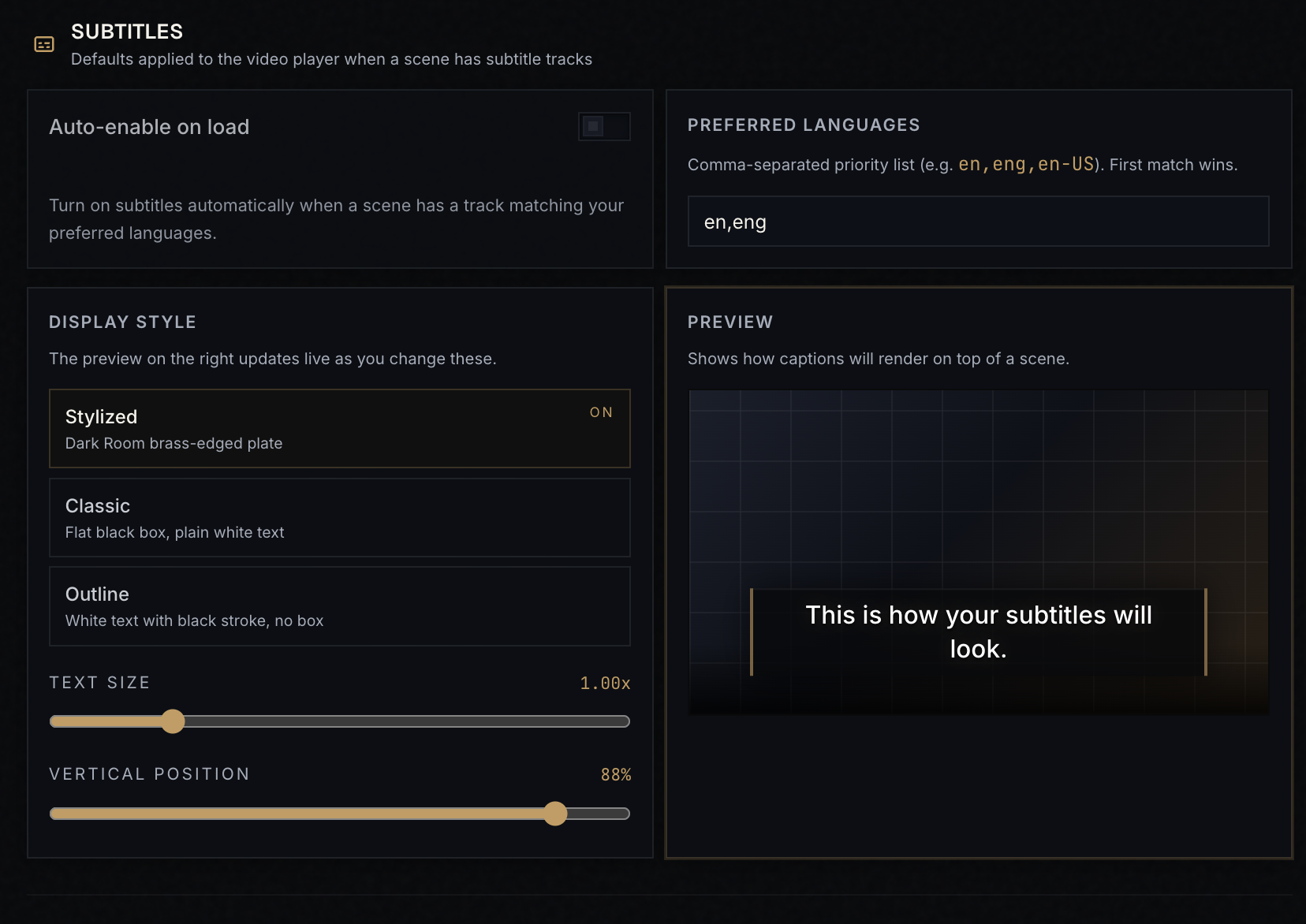
| Setting | Default | What it does |
|---|---|---|
| Auto-enable | off | Auto-select the first preferred-language track when a video starts. |
| Preferred languages | en,eng | Comma-separated list of language codes; player tries in order. |
| Subtitle style | Stylized | "Stylized" adds outline + shadow; "Plain" is minimal. |
| Font scale | 1.0 | 0.5–2.0 multiplier. |
| Position | 90% | 0–100%, distance from the top. |
| Opacity | 1.0 | 0–1. |
The settings panel includes a live preview so you can see the result as you adjust.
Per-video override
The player has a subtitle button that opens a style panel for the current video.
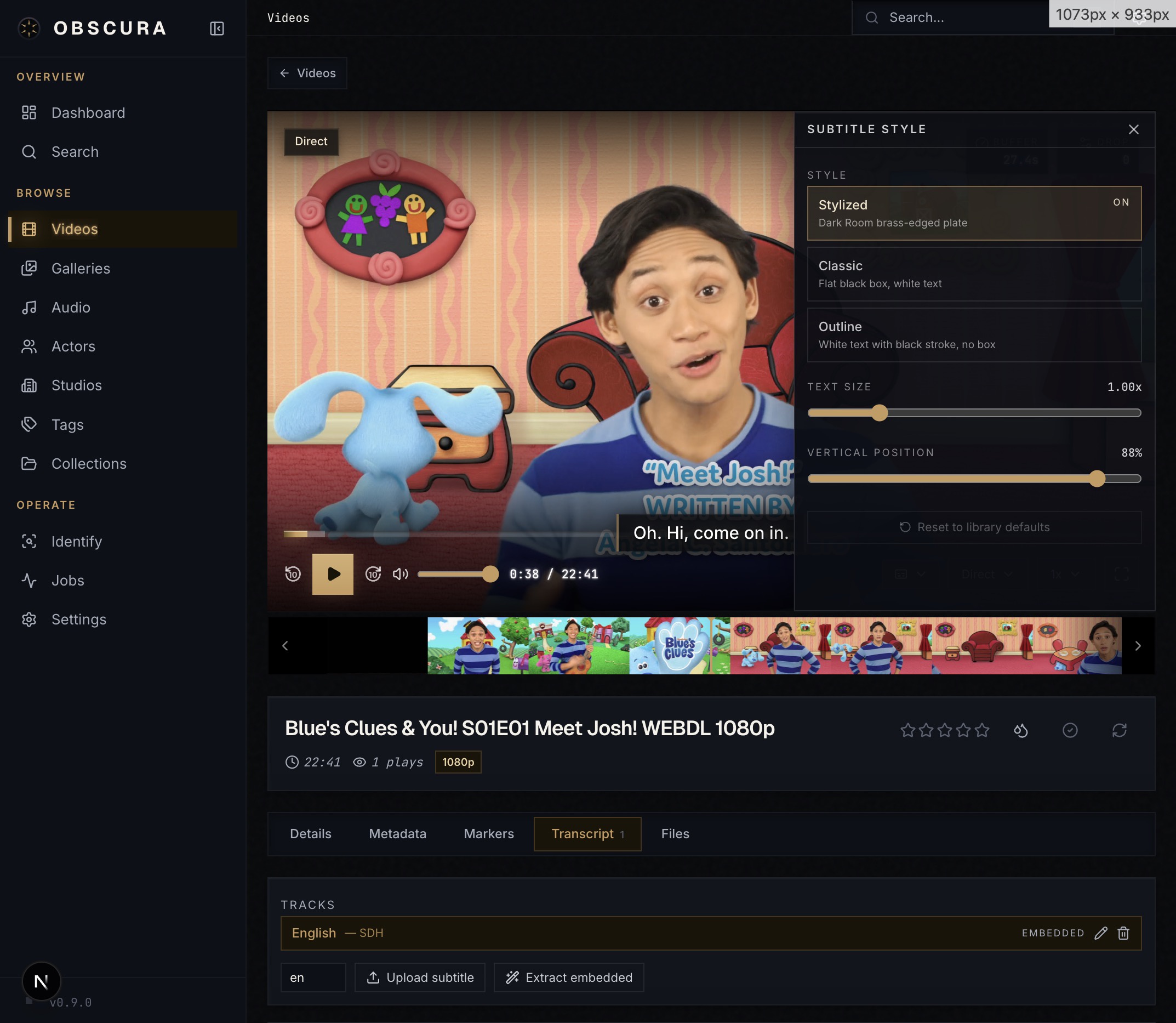
Changes here apply only to this video and persist in localStorage as obscura:subtitle-lang:{videoId}. The next time you open this video, your last selection comes back.
ASS / SSA
Stylized subtitle formats render through a custom overlay (AssSubtitleOverlay.svelte) so positioning, fonts, and effects encoded in the file are honored.
Transcripts
If a transcript is available (extracted from CC tracks or generated by an external pipeline), the Transcript tab on the video detail page exposes it.
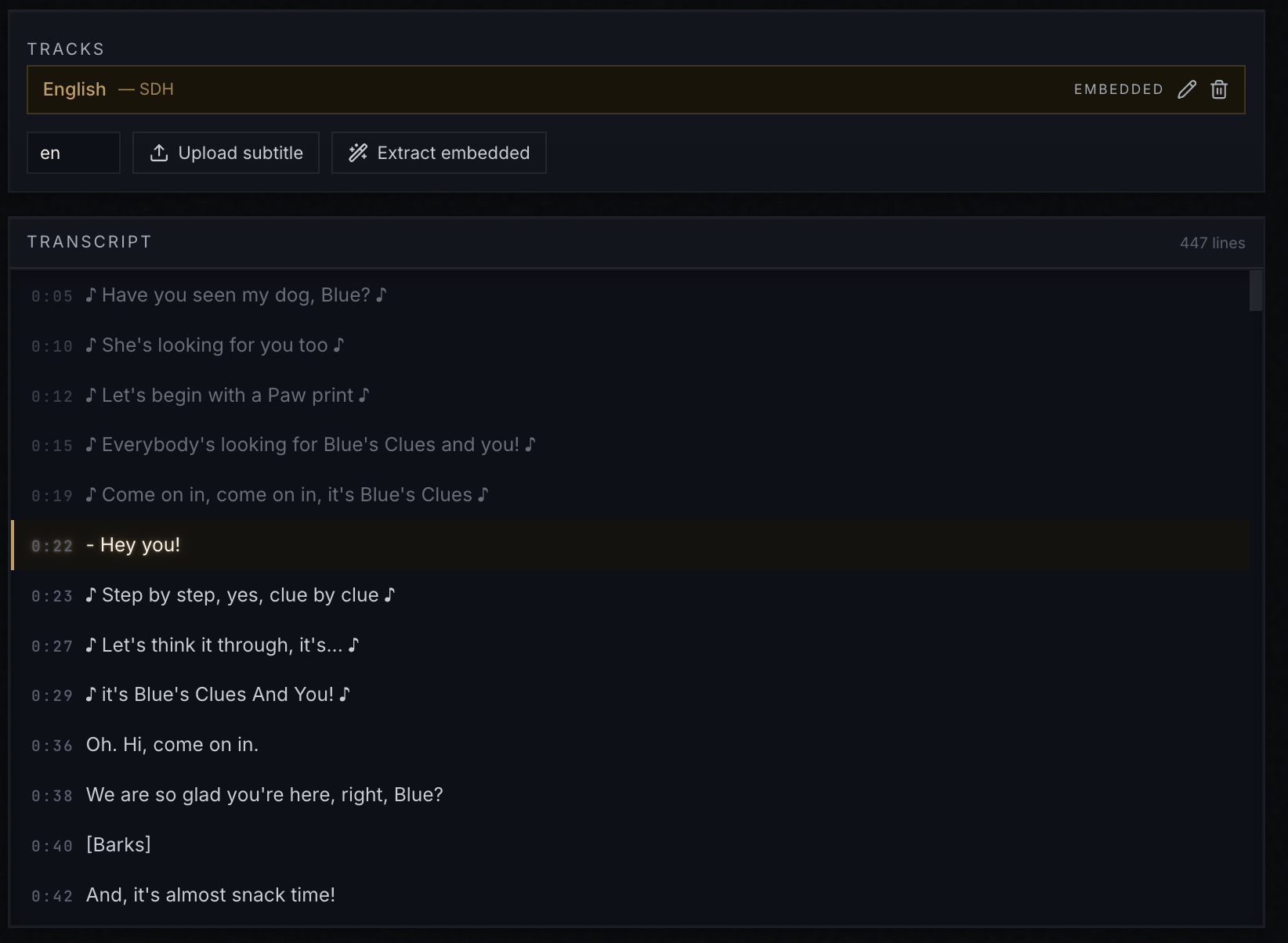
Click any timestamp to seek the player to that point; the active line scrolls into view as the video plays.
You can dock the transcript panel to the right of the player so you watch and read at the same time. The dock width drags between 40 % and 92 %.
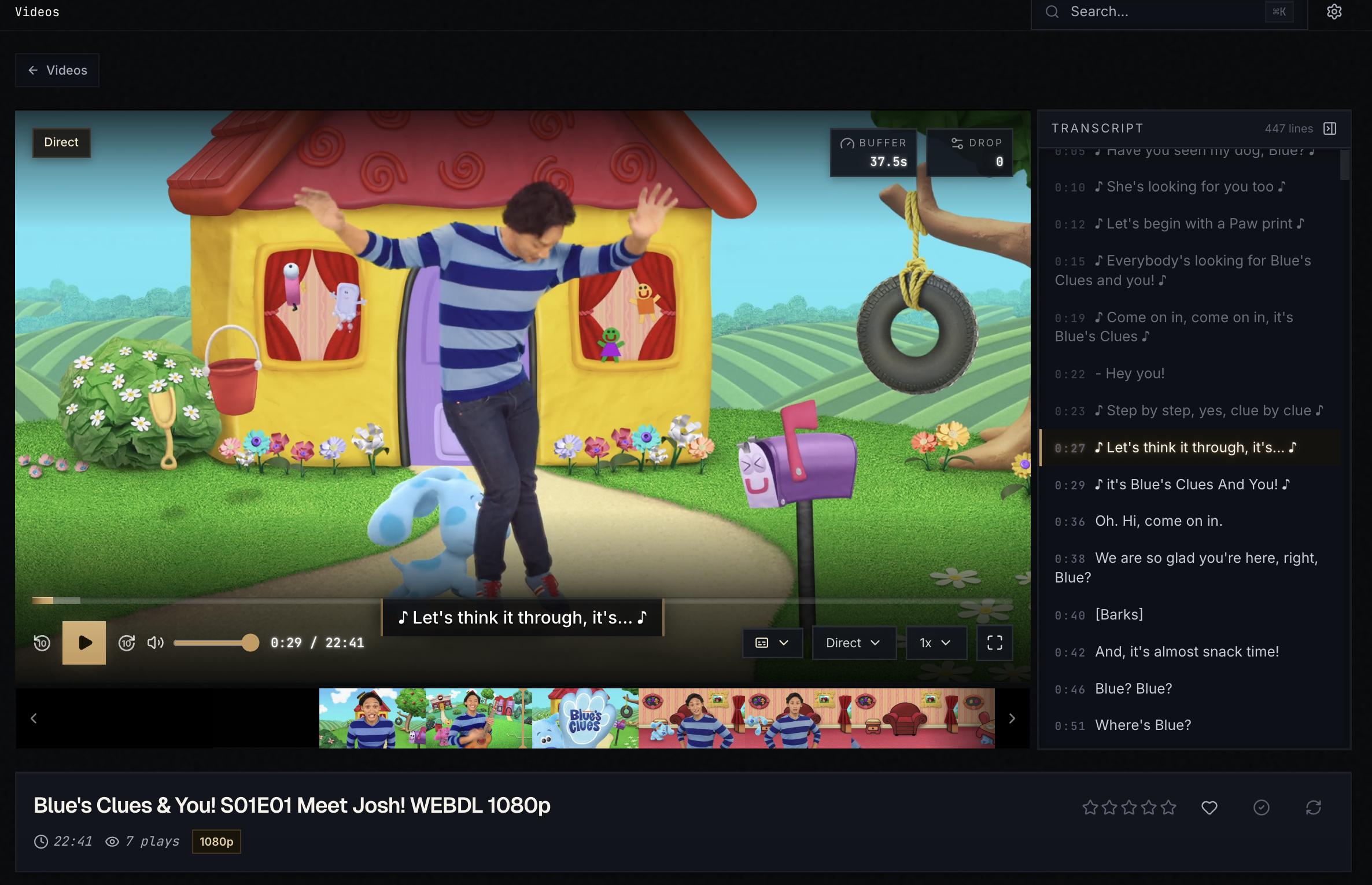
Image lightbox
Open any image from a gallery, the loose-images page, or the dashboard, and the lightbox takes over.
| Key | Action |
|---|---|
Esc | Close |
← or H | Previous image |
→ or L | Next image |
+ or = | Zoom in |
− | Zoom out |
0 | Reset zoom |
I | Toggle info panel |
1–5 | Set rating (press the same number again to clear) |
Zoom and pan
- Wheel zooms centered on the cursor
- Drag pans when zoomed in
- Double-click toggles between fit-to-window and 2.5×
On mobile
- Swipe left / right to navigate (when not zoomed)
- Swipe down to close (when not zoomed)
- Double-tap to toggle zoom
Animated images and videos
GIF, WebP-animated, and video-as-image entries autoplay in the lightbox. Play / pause and mute buttons appear at the bottom.
Info panel
Press I (or click the info button) to slide in a panel showing dimensions, format, date, performers, and tags.
Comic reader
Open Read from a comic-aware gallery to launch the dedicated reader. The reader keeps gallery page order, saves progress per gallery, and reopens with Resume when you come back.
| Mode | What it does |
|---|---|
| Paged | Shows one page at a time or two-page spreads. Enable First Page is Cover when the cover should stand alone before pairing the rest. |
| Webtoon | Shows a vertical scroll of pages and restores the saved scroll position when you resume. |
Desktop controls support the arrow keys for previous/next page. On mobile, left and right tap zones move through pages, while a center tap shows or hides the floating controls so artwork can use the full screen.
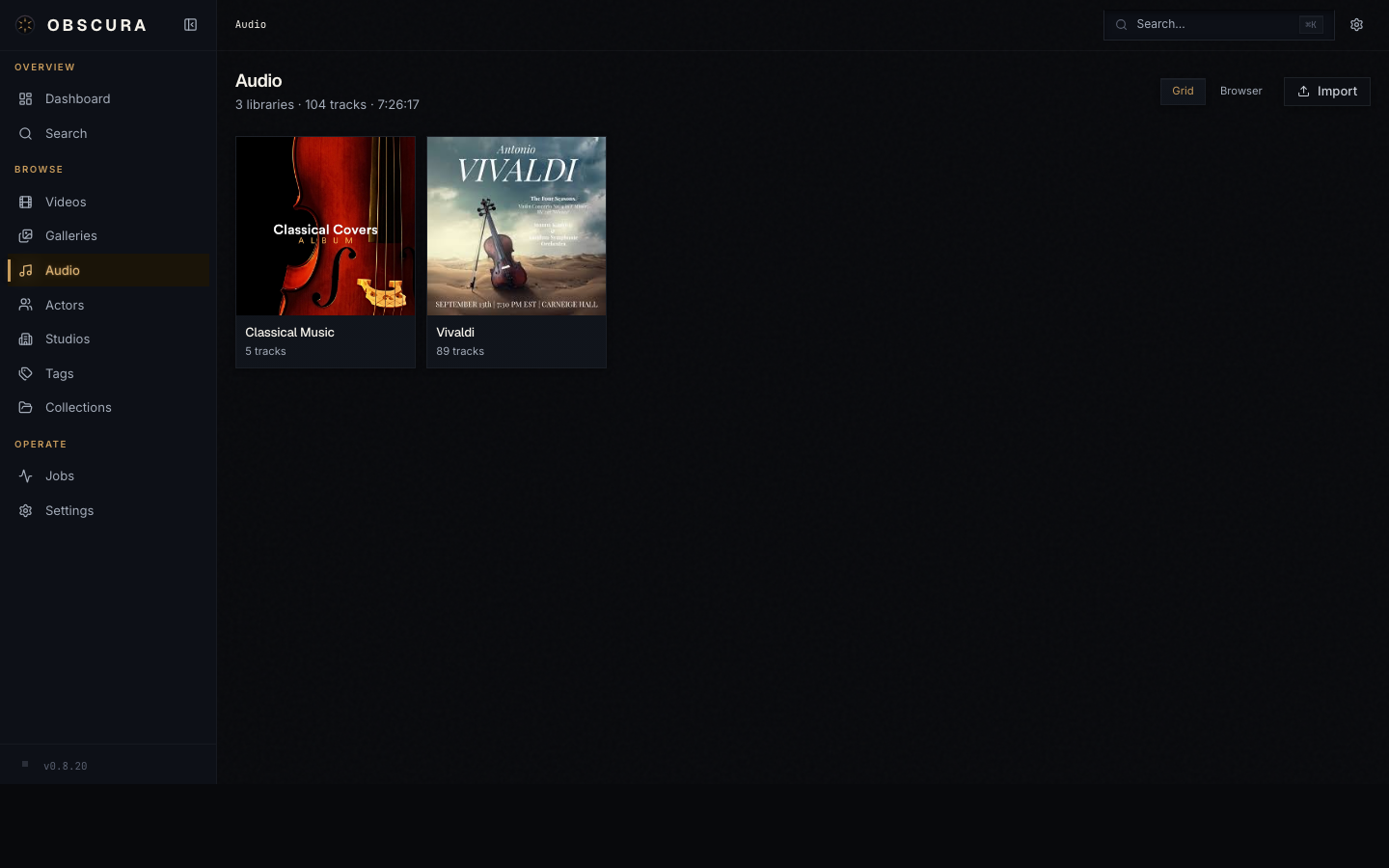
Audio playback
The audio player is global — once you start a track, it continues across navigation. The player docks to the bottom of every page until you close it.
Controls:
- Play / Pause, Previous / Next
- Shuffle and loop toggles
- Time / scrubber
- Volume
- Playback speed (0.75×–2×)
The currently-playing playlist persists across refreshes via the playlist_sessions table, including shuffle state, loop state, cursor, and any slideshow timing if you're playing a collection.
On mobile, a queue sheet slides up from the bottom for managing the current playlist.
Markers
Both the video and the audio detail pages have a Markers tab. Markers are time-stamped notes — chapter starts, scenes, beat-drops — that show up on the player timeline.
Add a marker by clicking + on the markers tab, set a title and a time (or a start/end range), and save. Markers are shared across direct and HLS playback.
Resume
Obscura tracks your last position per video and per audio track. Open something you've watched before and the player offers Resume at the saved time. Played duration, play count, and last-played timestamp are also tracked for sort options like Most Played.